If you’ve already enabled the In-Person Meeting Assistant, you’ve solved the problem of capturing live meeting transcripts. But what happens when the meeting ends without one?
Maybe the customer didn’t consent to live recording. Maybe the rep forgot to start it. Maybe it was an impromptu conversation in the lobby that turned into a real qualification discussion. In all three cases, the rep walks away with valuable insights that never reach Salesforce.
Here’s what that lost data looks like in practice for the reps you support:
- A financial advisor’s client declined to be recorded. The rep needs to capture the full discussion before driving to the next appointment, with no tool inside Salesforce to do it.
- A sales manager finishes a customer visit with no transcription running and spends 20 minutes that evening manually typing up the conversation.
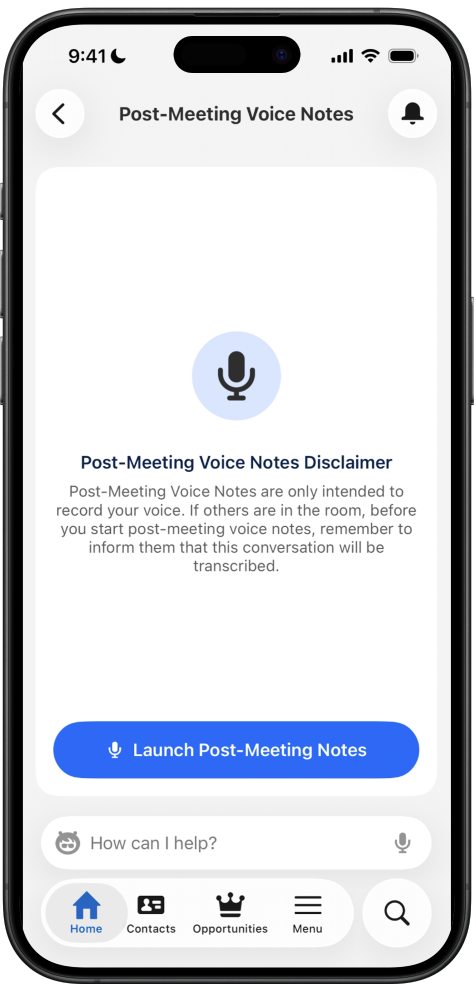
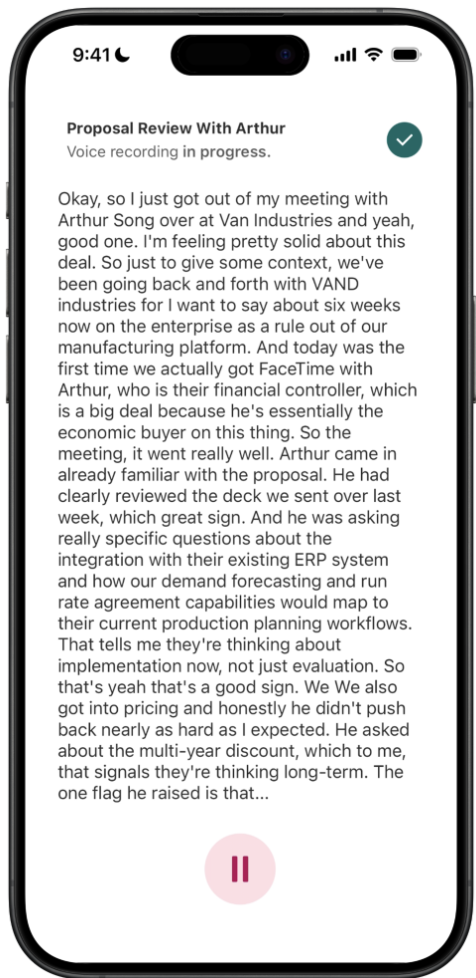
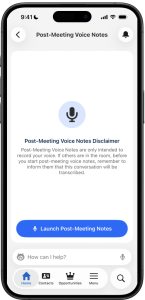
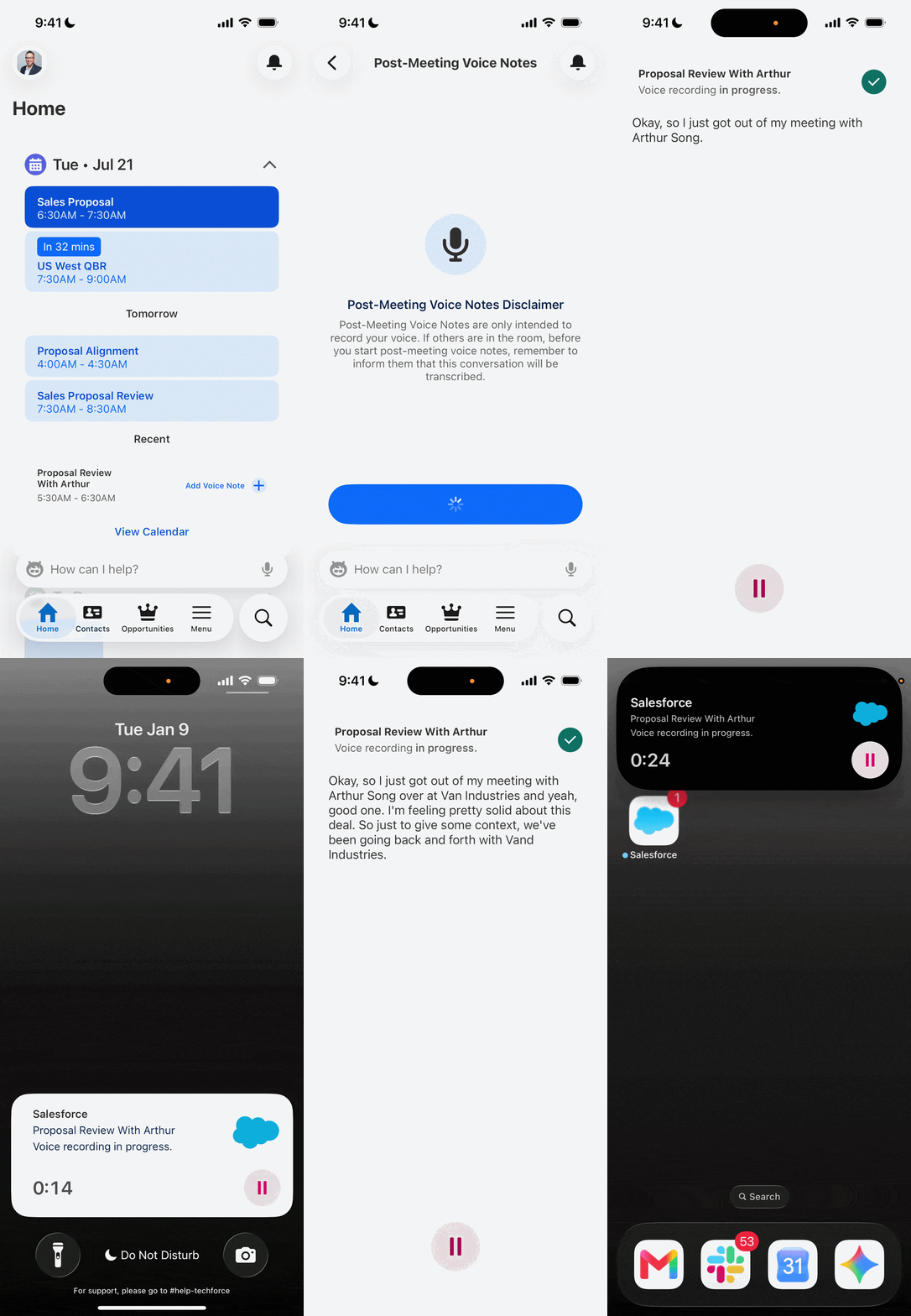
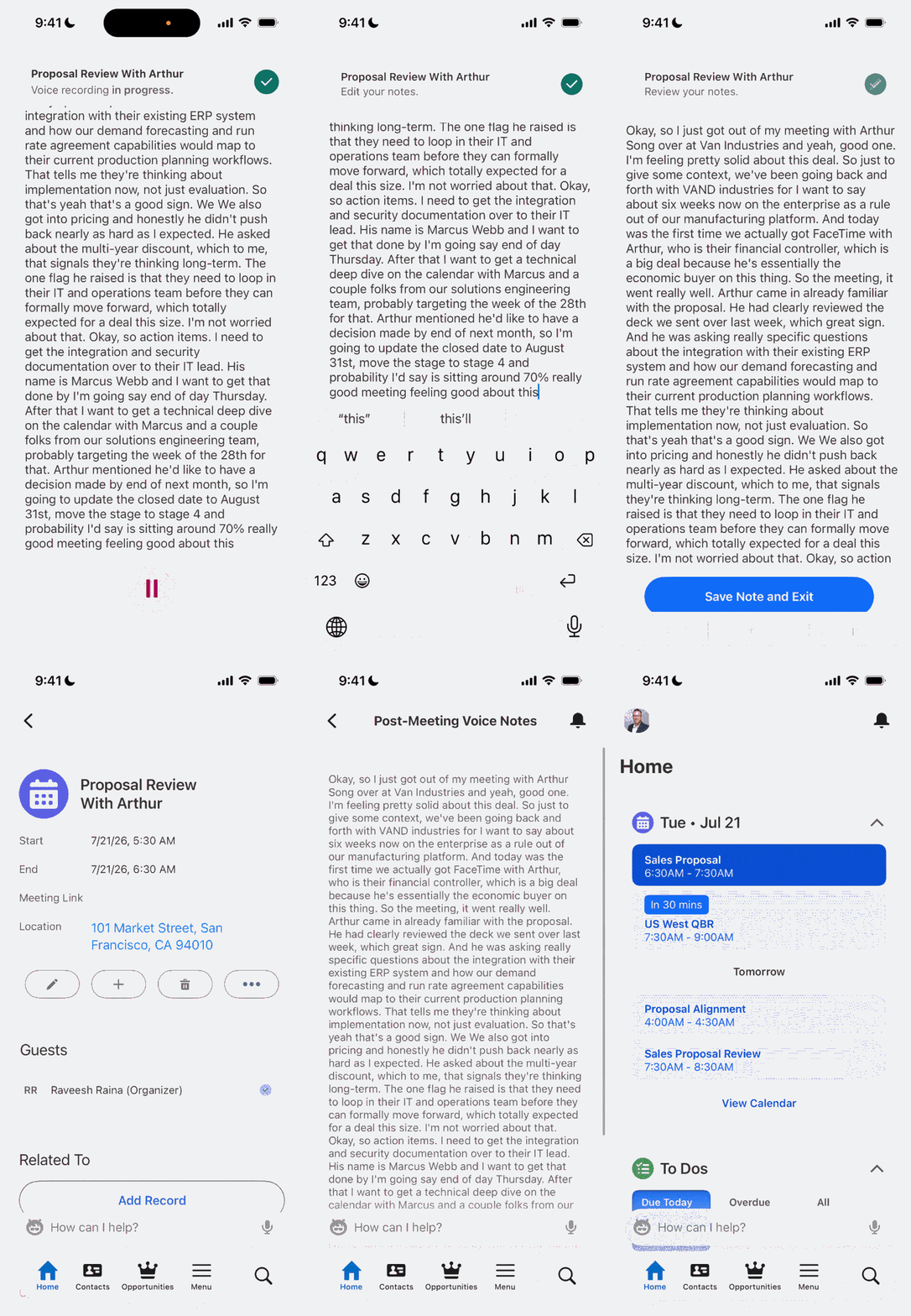
Post-Meeting Voice Notes closes all three of these gaps, natively inside the Salesforce mobile app. This new feature is enabled as part of in-person meeting assistant and uses the same privacy policy (where no audio leaves the device and audio is processed locally).
One Recording, No Consent Workflow Required
The key admin-relevant distinction: this is a single-user recording. Your rep is speaking to themselves, recording a post-meeting debrief, not a multi-party conversation. That means no verbal consent workflow needs to be implemented. The app automatically tags the logged-in user as the speaker and gets straight to recording.
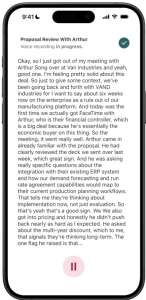
Once you enable it, your reps get a structured, on-device debrief channel. Record, transcribe, sync, done. All that context flows directly into Conversation Intelligence (formerly Einstein Conversation Insights), where you’ve already configured your insights, keyword tracking, and downstream automation.
Data Privacy features you’ve already approved
Post-Meeting Voice Notes runs on the same on-device AI architecture you already reviewed and approved for the In-Person Meeting Assistant. Nothing has changed from a data privacy standpoint:
- Audio never leaves the device. Transcription happens locally.
- No cloud audio storage. Only the text transcript syncs to Salesforce.
- Transcripts are wiped on logout. No data residency concerns tied to raw audio.
- Network required. While on-device AI handles transcription, a network connection is required to sync transcripts to Conversation Intelligence. Offline use is not supported at GA.
Knowing that your data is safely kept within the Salesforce Platform is especially important for admins supporting regulated industries, such as Financial Services, Healthcare, Public Sector, where data residency requirements around audio storage are strict. Post-Meeting Voice Notes takes that same philosophy and extends it to the post-meeting scenario.
Same Permission model, same downstream intelligence
Post-Meeting Voice Notes are controlled by the same Conversation Intelligence permission sets already governing the In-Person Meeting Assistant. If you’ve already set up and permissioned the In-Person Meeting Assistant for your users, your existing governance posture carries forward automatically. No updates are needed on your end.
Once a voice note transcript lands in Conversation Intelligence, the following features are automatically enabled based on your existing setup:
- Call Summaries and Next Steps: Einstein analyzes the transcript and surfaces follow-up actions for your reps automatically.
- Keyword Insights: Competitor mentions, pricing discussions, objections — all tracked through your existing Conversation Intelligence keyword configuration. No additional setup required.
- Flow Integration: Your existing invocable actions fire on voice note transcripts the same way they do on live meeting transcripts: Slack notifications, task creation, record updates.
- Prompt Builder: Post-meeting transcripts become grounding data for hyper-personalized follow-up email drafts, powered by the Prompt Builder templates you’ve already built.
Your Admin checklist
Here’s how to get your org ready:
- Verify your Conversation Intelligence setup. If you’ve already enabled the In-Person Meeting Assistant, you’re most of the way there. Audit your permission sets to make sure they’re current before the feature ships.
- Ensure your users are on the New Seller Experience. Post-Meeting Voice Notes are available to users on the New Seller Experience (Sales Cloud Mobile) only. Confirm your reps’ mobile app configuration.
- Confirm device compatibility. Your reps need Neural Processing Unit (NPU) capable iPhones, iPads, or Android devices. Run the same device check you did for the In-Person Meeting Assistant rollout.
- Plan your change management communication. Help your reps understand when to use each tool: In-Person Meeting Assistant for live meetings where transcription is running, Post-Meeting Voice Notes for everything else. The two features are designed to complement each other, not compete.
- Brief field teams on the network requirement. Syncing voice note transcripts to Conversation Intelligence requires a network connection. If your reps work in areas with limited connectivity, set expectations that notes recorded offline won’t sync until they’re back on network.
Post-Meeting Voice Notes picks up where live transcription leaves off. Audit your Conversation Intelligence setup now and you’ll be ready to enable it for your reps on day one.
Resources