Editors note: this post was updated on July 6, 2026 with the latest information and resources. For the most recent information on the MFA rollout, please reference this help article.
If you’ve been in the Salesforce ecosystem for awhile, you’ve heard us say it: At Salesforce, Trust is our #1 value. And we mean it! That rock-solid, secure-by-design foundational layer is likely one of the reasons you chose Salesforce in the first place.
But here’s the reality: The threat landscape is changing fast. As we progress deeper into the fourth stage of the Industrial Revolution, and AI becomes part of how we work each day, the attacks are getting more sophisticated, more convincing, and more motivated — because the data at stake keeps growing. Data security and governance are business-critical for Salesforce customers because your CRM sits at the center of everything: your customer data, employee data, and business data. That means breaches aren’t just IT problems but business problems, reputation problems, and trust problems too.
Historically, security efforts have focused on things like firewalls, VPNs, and device security (the network perimeter), and now we’re seeing a shift toward protecting the data itself. Since your Salesforce org is at the center of your customer data, employee data, and business data, security isn’t something admins can afford to treat as someone else’s job.
The good news? Security is a team sport, and Salesforce Admins already use configuration to apply built-in controls to improve their organization’s security. By doing things like setting up a permissions-led security model, using Health Check to improve security posture, and setting up IP allowlisting, admins are extending security controls across their orgs. One of the configurable controls that helps admins play offense is multi-factor authentication (MFA), and Salesforce recently announced some changes for this. Let’s get into what’s changing.
What’s changing with MFA
Salesforce has required MFA for all users for several years, but beginning June 26, 2026, it will be enforced for all users. Here’s what that means for you as an admin.
- You will no longer have the ability to select (or deselect) the setting Require multi-factor authentication (MFA) for all direct UI logins to your Salesforce org. If you’ve already enforced MFA at your organization, your users won’t be impacted or even notice a change. You’re good to go!
- You also won’t be able to Waive Multi-Factor Authentication for Exempt Users any longer. Users who have this permission applied will be prompted to enroll in MFA when they log in.
If your organization uses single sign-on (SSO), check if your SSO provider passes Authentication Methods Reference (AMR) or Authentication Context Class Reference (ACR) signals to Salesforce — essentially a digital receipt confirming MFA already happened on your company’s login page. If yes, you’re set. If not, Salesforce will prompt your users to set up a secondary verification method at their next login.
MFA 101
Let’s rewind and talk about MFA basics. At its core, MFA is a security measure that requires multiple ways to prove users are who they say they are when logging in. When only one authentication method is in place, a single compromised credential puts the user’s account at risk. By enabling MFA, users are required to verify their identity through a second method. This ensures that stolen credentials alone are not enough to access the system. Now we’re talking about real security.
There are three key factors of security.
- Something You Know: This relies on information that exists in your head such as a password or PIN. This is the most common form of security, but also the most vulnerable.
- Something You Have: This is something that you physically have in your possession, such as a security key or authentication app.
- Something You Are: This is biometric information based on your physical characteristics, such as a fingerprint scan or face recognition.
MFA requires more than one of these factors to be in place for users to gain access to the system. If a bad actor gets hold of a password, they still can’t get in.
Here’s why this matters: Nearly 30% of data breaches are caused by misconfigured access settings. And in this day and age, a data breach isn’t just an IT headache — it can cascade into a company-wide reputational crisis. When data is compromised, the impact is widespread. Not only do organizations need to deal with operational disruption (such as investigating and containing the incident, reviewing and resetting credentials and permissions) that might take the system offline, there are also financial ramifications such as legal fees, regulatory fines, and increased cybersecurity investments. All of this results in a loss of trust for employees and customers who give organizations their personal information, purchase history, and support interactions. That’s a big deal.
Standard vs. phishing-resistant MFA
Administrative access comes with greater responsibility — and greater exposure. Because admins and privileged users have advanced permissions to do things like modify system settings, manage permissions, and access sensitive records, a standard authentication policy is not sufficient. An additional verification requirement applies to these roles specifically.
Not only will MFA be enforced for all users; phishing-resistant MFA will be enforced for all privileged users. Let’s define a privileged user and who this will impact.
- System Administrators
- All Users with Modify All Data permissions
- All Users with View All Data permissions
- All Users with Customize Application permissions
- All Users with Author Apex permissions
So what’s the difference between standard MFA and phishing-resistant MFA? It comes down to one thing: adding an additional layer of security specifically targeted to protect users from phishing attacks.
Standard MFA asks the user to approve a prompt or enter a code. That process can be intercepted by a sophisticated phishing attack that tricks a user into approving a fraudulent login. Phishing-resistant MFA is different because it creates a cryptographic bond between the device being used and the exact website being accessed; the second factor is primarily biometric, which adds additional security. Your device checks the URL, and if it doesn’t match the exact domain of your registered security key, the credentials simply won’t be sent. No human judgment required. No room for error.
If you don’t currently use phishing-resistant MFA, there are a few ways to implement this. Work with your IT and security teams to determine which is the best for your organization. Some options you can evaluate include:
- Physical security keys (like Yubikey): Users must physically interact with the device to authenticate the login request. This goes beyond current MFA methods such as the Salesforce Authenticator users might have on their phones. This addresses the Something You Have factor.
- Biometric/built-in authenticators (like TouchId): Users must provide a scan of a fingerprint or face ID to authenticate the login request. This addresses the Something You Are factor.
If your organization uses SSO, combining it with phishing-resistant MFA at the point of authentication strengthens your security posture. The SSO portal serves as the central access gateway, but before a session is established, users must pass an MFA checkpoint. Upon successful verification, the platform issues a cryptographically bound session token, granting access to all connected applications. The result is streamlined access for users, and increased protection for your organization.
Your admin implementation checklist
Before you change any settings, get your IT and security teams aligned and build a plan together. Then, follow these steps for a smooth rollout.
1. Audit your users, devices, and SSO configuration
Start by identifying your privileged users, the ones who will require a phishing-resistant MFA solution. You can approach this in a few ways.
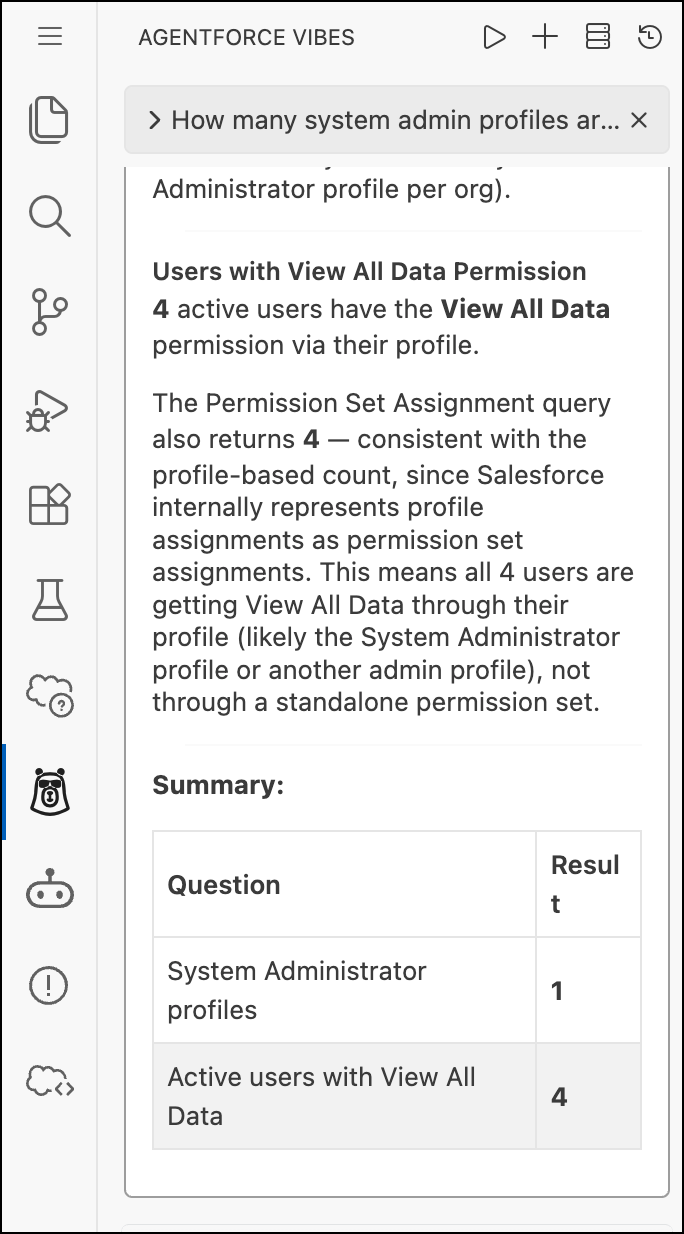
This is also a great moment to apply the principle of least privilege: Do all of these users actually need the elevated permissions they have? If not, now’s the time to clean that up.
Next, work with your IT team to do a device inventory; they will know what physical security keys they have on hand and the functionality of different machines issued to users. Which users already have access to biometric authenticators on their machines? Which users will need to be issued a physical device such as a security key?
If you’re using SSO, check your identity provider (IdP)’s configuration. Confirm that when a user authenticates with FIDO2, your IdP actually passes a phishing-resistant AMR/ACR claim string to Salesforce.
2. Enable and configure your settings
In Setup, you’ll need to enable several settings under Identity Verification including:
- Let users verify their identity with a built-in authenticator such as Touch ID.
- Let users verify their identity with a physical security key.
- Allow passwordless login with passkeys (optional, but highly recommended).
3. Test in a sandbox
Every good admin knows to build and test in a sandbox before deploying to production, and an MFA implementation is no different! It directly affects user activity, and admins need to test the registration and step-up authentication flows prior to setting up MFA in production for users. Here’s what to test.
- Replicate admin access: Make sure your test admin account in the sandbox has the exact same security permissions as your admin account in production.
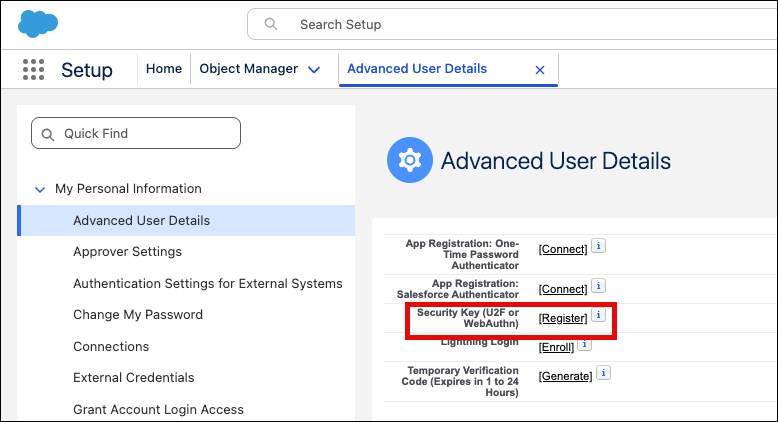
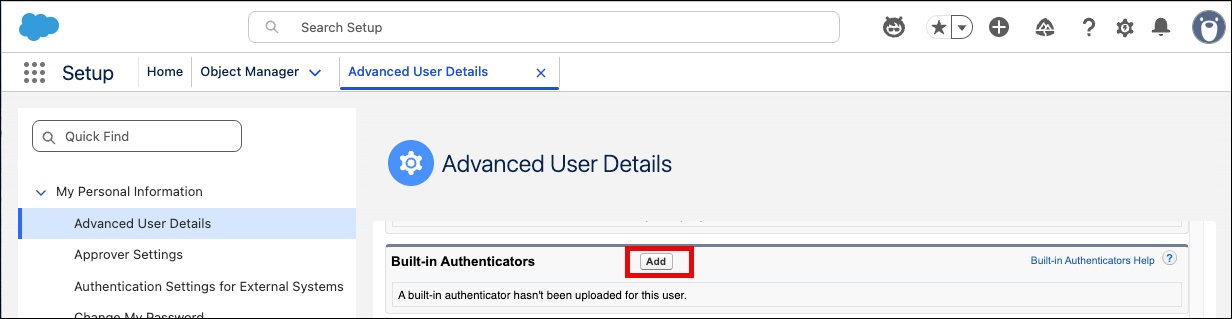
- Test direct UI registration: Log in directly to the sandbox, navigate to Personal Settings ➔ Advanced User Details, scroll down to the Security Key (U2F or WebAuthn) field, or the Built-in Authenticators section, and register your device.
- Test the login flow: Log out of the sandbox completely, open an Incognito or Private browser window, and log back in. Verify that Salesforce challenges you for the passkey or hardware key and grants access smoothly.
4. Create a backup plan
What happens if one of your privileged users loses their physical security key or is unable to use biometrics? Plan for this before you go live. A couple considerations you can implement include:
- Require every privileged user to have two forms of phishing-resistant authentication registered with their account.
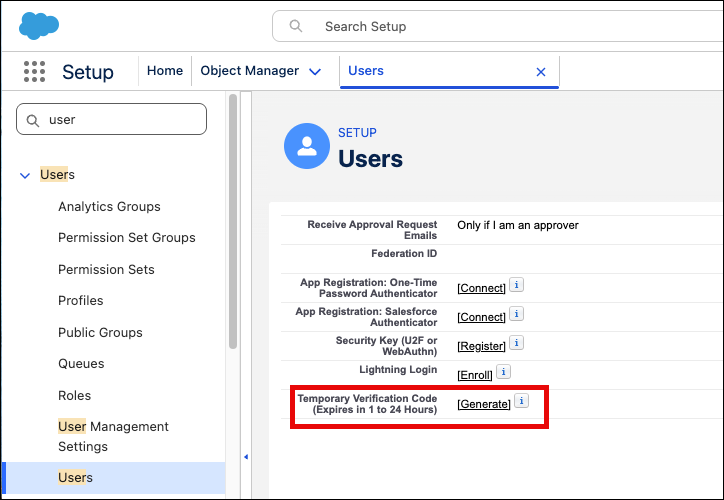
- Create a “Break Glass” emergency protocol with your IT or security team in case of admin lock out. This could be a video call or in-person identity verification with a designated security team member, who can then authorize another system administrator to log in and generate a Temporary Verification Code for the locked-out user.
5. Go live and onboard your users
MFA affects user activity and requires a change management plan to properly prepare users for the change. Create documentation, build training materials, and prepare your users well before the change takes place. For bonus points, once you’ve gone live, check out the MFA Dashboard from Salesforce Labs. It monitors, audits, and reports on MFA usage in your org, helping you monitor adoption at a glance.
Admins lead by example
As admins, we already have a lot on our plates, and it’s easy to look at shifting MFA requirements as just another compliance box to check. But here’s the reframe: Advanced security isn’t a hurdle designed to slow us down. It’s the foundational layer that helps our businesses run smoothly, confidently, and without disruption.
Transitioning privileged users to phishing-resistant MFA means deploying an un-hackable shield that protects our company’s data, our customers’ trust, and our daily operations.
As admins, we’re the gatekeepers of our environments. When we audit early, test thoroughly in a sandbox, and secure our high-privilege users, we set the tone for the entire organization. When we embrace phishing-resistant MFA with confidence, we show our users that robust security and a great user experience aren’t mutually exclusive.
Get your keys ready, lock down your admin accounts, and help lead the way to a more secure Salesforce ecosystem.
To learn more about our shared responsibility model and to dive deeper into security for admins, join us for an upcoming Security In Action hands-on workshop.
Resources