Get started with Agentforce Vibes
Agentforce Vibes might seem like a strange starting point for the average Salesforce Admin, but it can be a very powerful tool. And it’s becoming more and more powerful as time goes on.
To understand its potential for admins, it helps to start with the basics. When you open Vibes from Setup in your org, you’re pointing to an instance of Visual Studio Code (which has been set up very specifically for your org with all the tools needed in order to run a Visual Studio). And the fact that that’s an instance running on a different computer is very important to understand when it comes to working with Vibes, because you aren’t working directly within your org itself. You’re using a piece of software that’s been brought to you through the magic of your browser.
But the thing is, just because Visual Studio Code is known to be a developer tool and what developers would call a developer environment doesn’t mean it can’t be an admin tool. In fact, there are many things you can use Vibes for very easily without having to worry about the fact that you’re interacting with Visual Studio Code. In this guide, we’ll explore what sets Agentforce Vibes apart and how it can make your everyday admin work more efficient.
Skill up Agentforce Vibes
Agentforce Vibes can be a powerful way to inspect your org and get insights into what’s there via the Org Browser. But this only scratches the surface of what Vibes can do. While we don’t recommend going down a developer-centric path of creating or running Apex or building out Lightning Web Components, as those tasks require familiarity with VS Code as a developer environment, there are actions you can take without having to leave the Vibes panel.
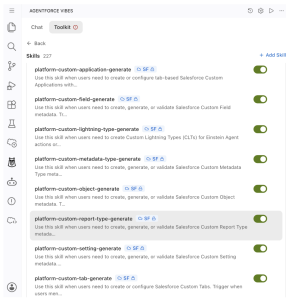
To power up Agentforce Vibes, you can add skills to it. Think of a skill as a packaged set of instructions on how to accomplish a very distinct task: create objects, add fields or validation rules, etc. When you use a prompt with Vibes and the verbs in that prompt line up with what’s associated with a skill, the agent will pick up on that and execute the specific skill. This gives the agent a highly efficient way to accomplish what’s being asked. Instead of guessing and spinning out on tokens, it focuses on the skills available and gets the task done quicker by following what’s in the skill.
For admins, this means you can easily investigate your org — but also update and manipulate it via Vibes. Let’s explore how that works.
Use the Agentforce Vibes Library
Another great thing about skills for Agentforce? You don’t have to write them yourself. Salesforce and the Trailblazer Community have collaborated to create an extensive library of skills you can start with. And with the recent updates, these skills come predefined with Vibes. To access it:
- Go to the Setup dropdown and select Agentforce Vibes. Vibes will launch in a new window. (This is that virtualized instance and it might take a few minutes to make the connection.)
- Once it’s launched, give Vibes a few moments to finish setting things up. (You may not see our friendly Codey icon in the left navigation right away.)
- Once Codey icon appears, click on it to show the Vibes panel.
- If this is your first time setting things up, you’ll see a “Setup a Project” step. This is what Vibes uses on its instance to handle updates before deploying it. Simply click on that step, and then select Standard in the dropdown.
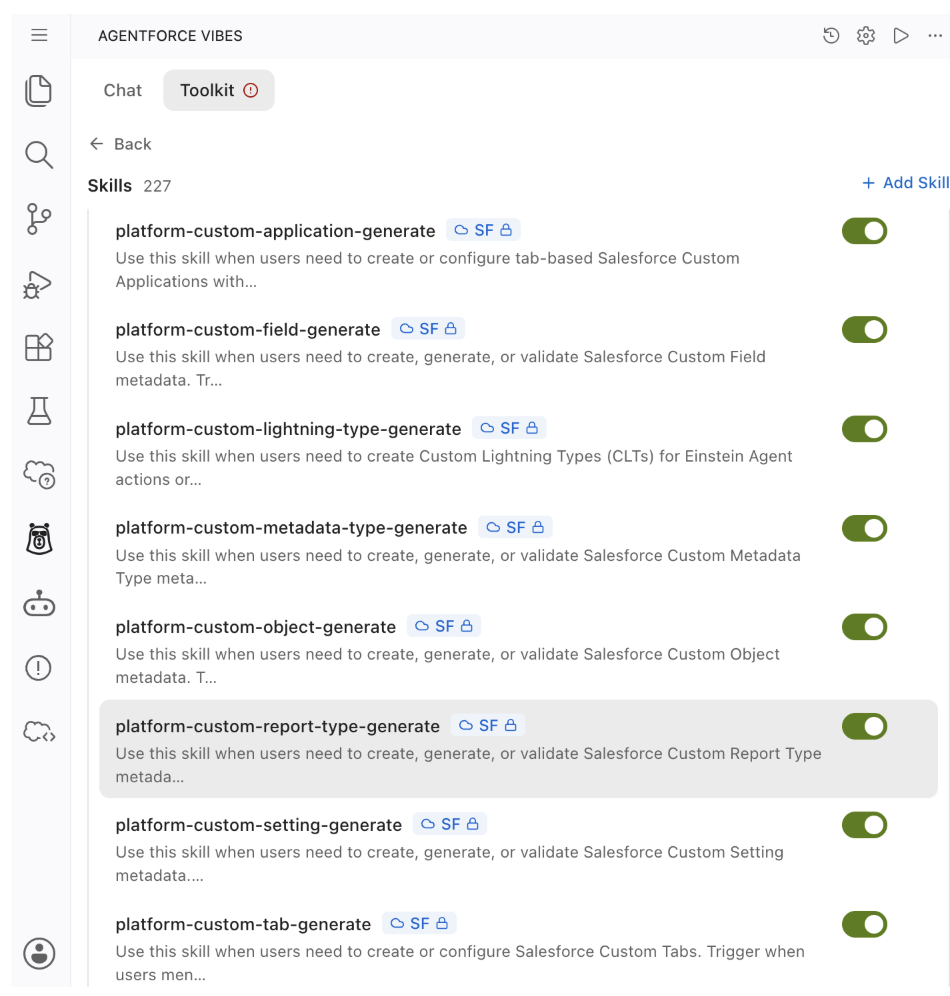
- When Vibes appears, click Toolkit and then Skills to see the extensive list of pre-installed skills.
- At any time, you can add new skills manually with the + Add Skill button near the upper-right corner of the panel
Plan, verify, deploy
I probably don’t need to mention that as you “kick the tires” of what Agentforce Vibes can do, you should be in a trial org like a Developer Edition or scratch org, or in a sandbox. But since repetition is the key to communication: As you kick the tires of what Vibes can do, you should be in a trial org like a Developer Edition or scratch org, or in a sandbox.
Also, on top of the fact that anything Vibes does is on its local filesystem before being specifically told to deploy, it also comes with a Plan mode that won’t even do that until you approve of the plan.
If you’re still looking at that massive list of skills, click Chat at the top to return to the main interface, and then click Plan at the bottom of the interface.
Now we’re ready to see Vibes skills in action.
Take Vibes skills for a spin
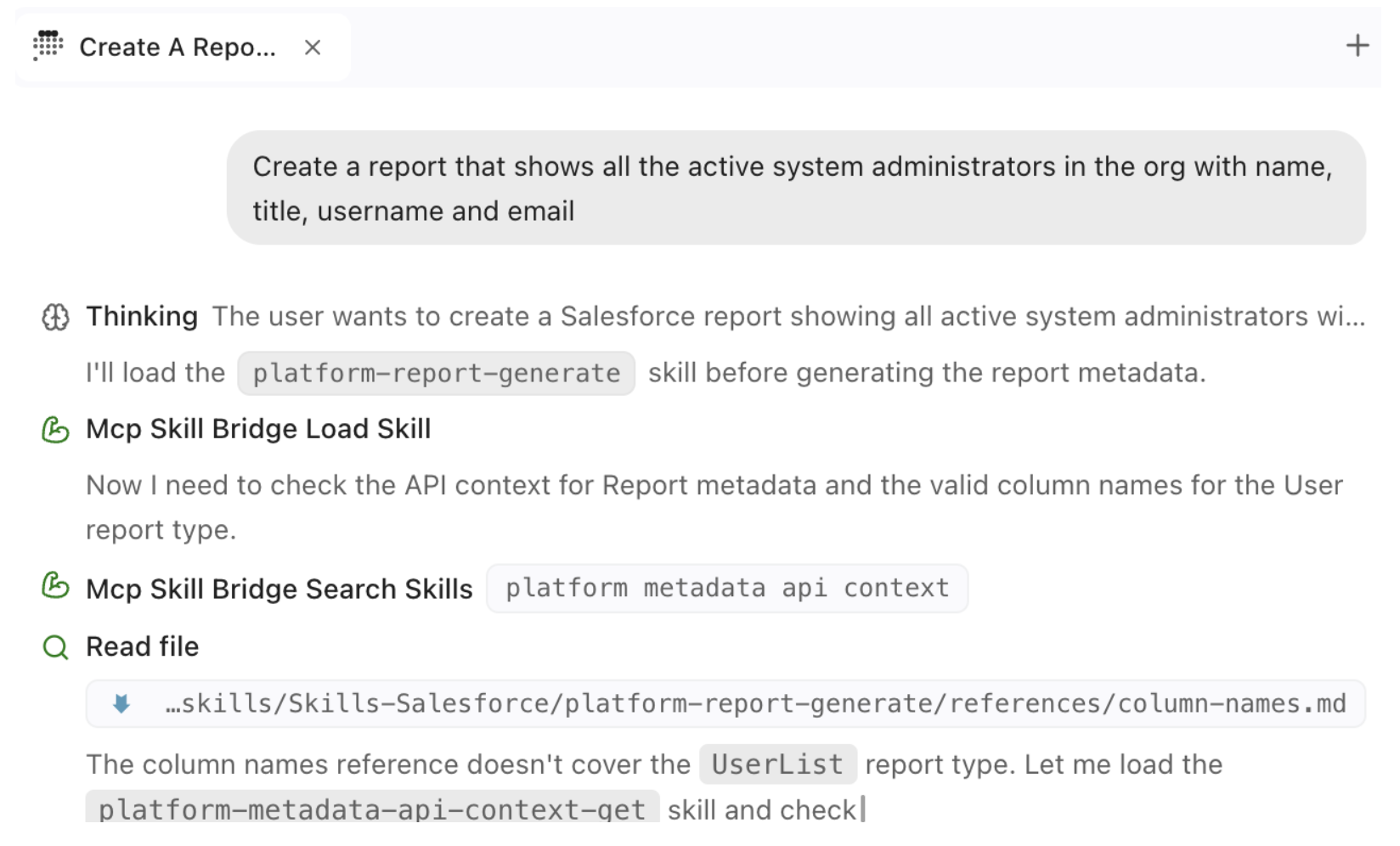
I’ll confess — I’m not crazy about creating new reports. There’s nothing wrong with our reporting interface, but I always feel I’m slow to make it work the way I want. Luckily, Vibes can help. In the chat window, let’s start with a report we created for our recent Security in Action workshop series.
Create a report that shows all the active system administrators in the org with name, title, username and email
Vibes will do its thing. Remember, you don’t have to declare what skills you want it to use — it will pick it based on context and select what it needs from its toolkit. Vibes will call them out while using them.
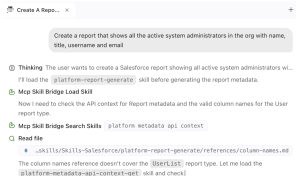
After a while (your mileage may vary here; my plan took a minute to be generated, and you may have to click Run to keep it running), you’ll have a plan about what Vibes wants to do.
Then I can approve it, and Vibes will leave Plan mode and start executing.
Remember, it’s still only on Vibes’ filesystem within its cloud instance and not the connected org. Vibes will give you a friendly sf deploy command you can run, but we’re admins here. We’ll just have Vibes do that. After all, it has a skill for that, so let’s prompt:
please deploy the new report to the connected org
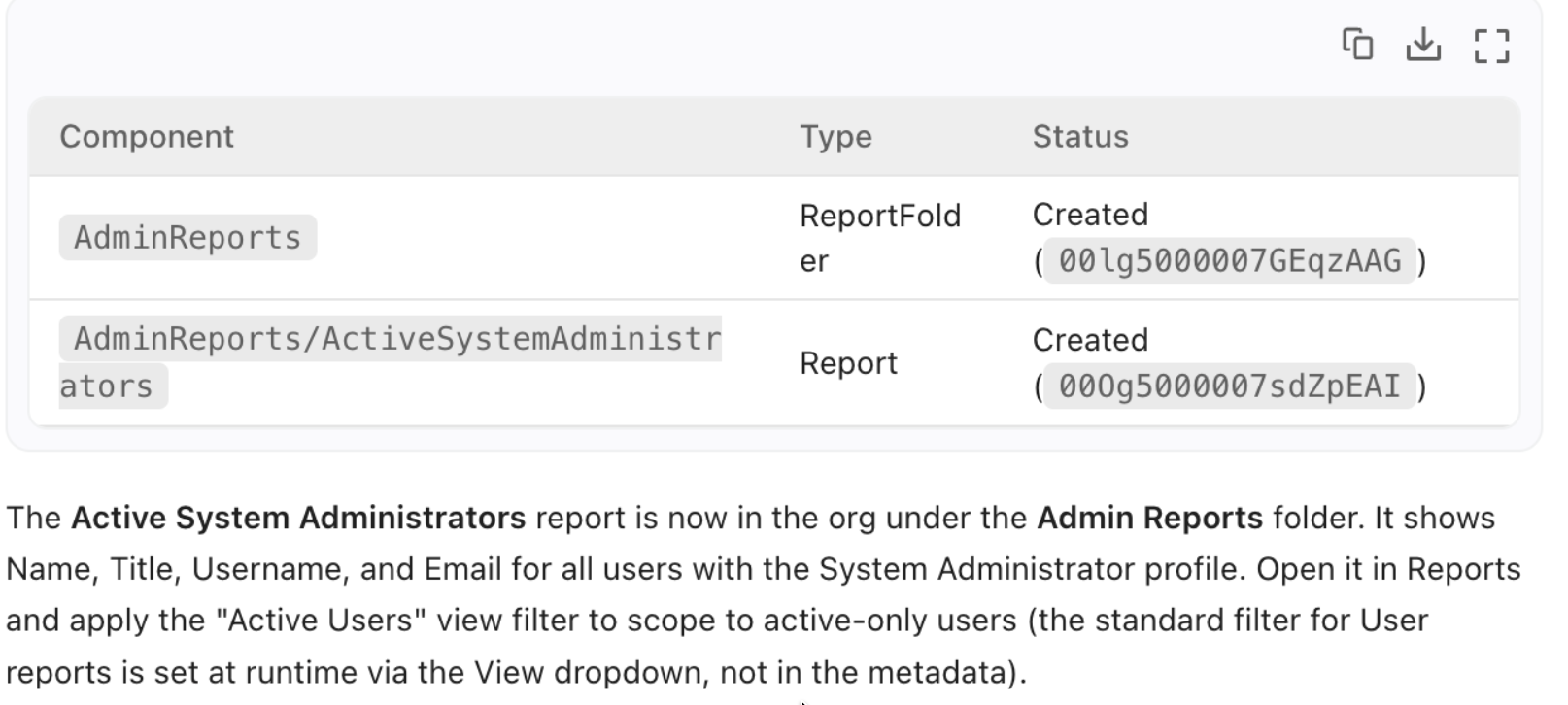
What happens next depends on a few things. For instance, my deploy failed because Vibes guessed at the report type and got it wrong, and then tried various APIs to fix it. Also, since it hadn’t deployed before, it had to juggle some access to connect properly. And you might see some very technical terms like access tokens. Don’t let the red error messages worry you — Vibes will do its best to figure it out and make the deployment work.
When I get my deployment, I click Accept All to finish the job.
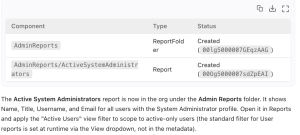
I can confirm in my org that, thankfully, I am the only system admin on the report.
Discover what sets Agentforce Vibes apart
Now, you might have some questions, like “Can’t Agentforce for Setup do some of this?” or “Wasn’t there a video recently about using Claude in the browser to report on flows?” Yes! While different clients have various features, they’re all built on this concept of leveraging skills and then using MCP to take action on a platform. That’s the AIforce advantage: You aren’t tied to one UI or client to work with Agentforce. Some of the strengths of learning Vibes, however, include that long list of installed skills and the flexibility to easily add new ones over time. Of all the clients, Vibes is one of the most flexible and versatile.
Find your first use case
We’ve started slow and easy here, but as long as we’re exploring what Vibes can do — and you’re in a trial org like a Developer Edition or scratch org, or in a sandbox — there are lots of things to try.
- Create and update custom objects and fields.
- Add new list types to objects.
- Generate new permission sets.
- Perform SOQL queries.
- Create record-triggered flows.
That last one is relatively new, but there’s been some early success with creating that style of flow. Start exploring what Agentforce Vibes can do for you and get more comfortable with using this amazing tool to make your everyday admin work more efficient.
Resources