In any Salesforce org, security is the sum of thousands of small decisions. From how permissions are assigned to how sharing rules evolve over time, these layers of configuration define how your data stays safe and who gets to see what. But if you’ve ever been deep in troubleshooting mode, clicking through Setup pages, running SOQL queries against share tables, or building spreadsheets to map out access, you know that managing sharing configuration can feel like archaeology. You’re digging through layers of legacy rules and role hierarchies just to answer what should be a simple question: “Why does this user see this record?”
You’re not alone in this. Sharing troubleshooting is one of the most time-consuming challenges we face as admins. It’s the kind of work that can eat up an entire afternoon, and that’s on a good day. When your org has grown over years of team changes, new projects, and evolving security requirements, piecing together the full picture of “who sees what and why” becomes exponentially harder.
That’s the exact challenge Setup with Agentforce was built to solve. Instead of navigating dozens of Setup pages or writing manual queries to untangle your sharing configuration, you can now have a direct conversation with an intelligent agent that understands the nuances of Salesforce security. Setup with Agentforce turns those hours you’ve spent on access troubleshooting into minutes, giving you time back to focus on the strategic work that moves your business forward.
Let’s explore how Setup with Agentforce works, what you can do with it, and how to build a repeatable sharing health check workflow that keeps your org secure.
Sharing fundamentals: A quick refresher
Before we discover what the agent can do, let’s get on the same page with a quick refresher on how Salesforce sharing works. Whether you’ve been managing sharing for a decade or you’re configuring it for the first time, it helps to have the mental model fresh — especially since Setup with Agentforce is designed to navigate these layers for you.
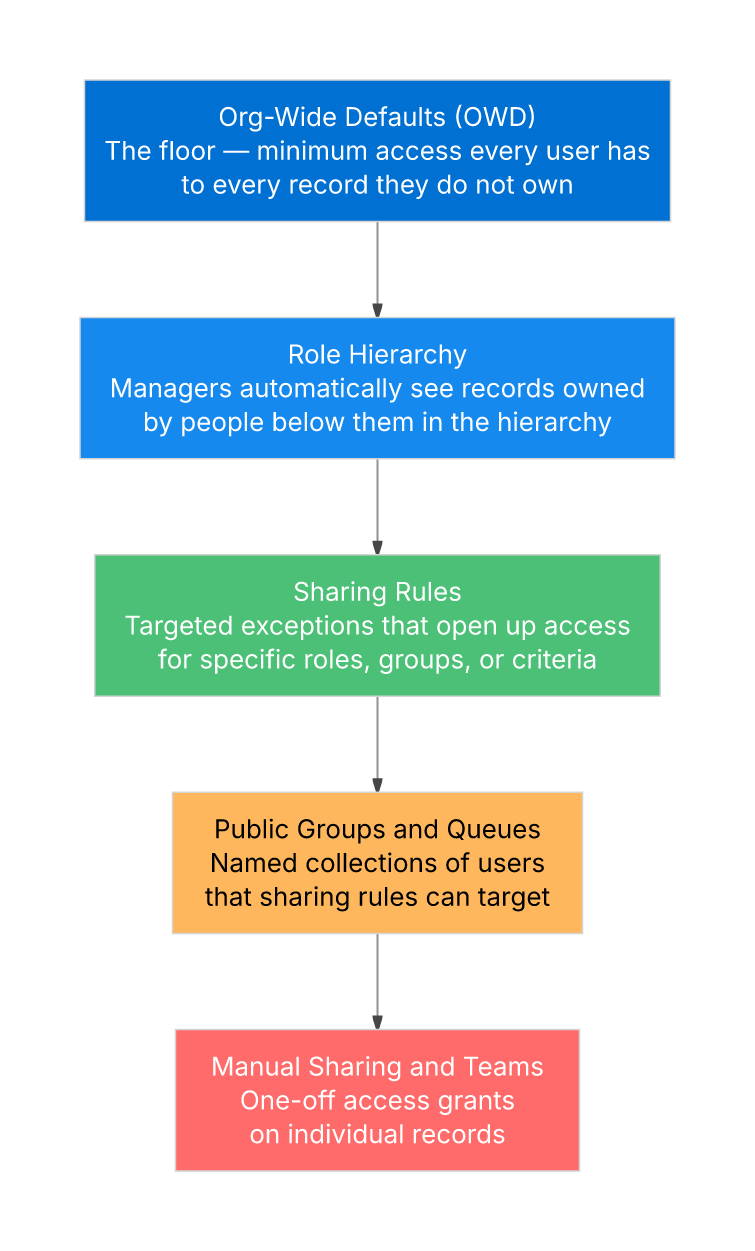
Think of Salesforce sharing as a layered system where each layer can only add access, never take it away. Here’s the quick breakdown.
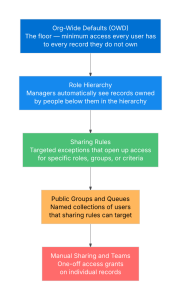
- Org-Wide Defaults (OWD): This is the minimum default access every user has to records they don’t own.
- Role Hierarchy: Visibility rolls up through the role hierarchy; records owned by users in a given role are visible to users in parent roles above them.
- Sharing Rules: Targeted exceptions that open access for specific roles, groups, or criteria.
- Public Groups and Queues: Named collections of users and other groups that can be referenced by sharing rules, manual sharing, and other access mechanisms. Groups simplify sharing management by letting you grant access to a defined set of users at once, rather than individually.
- Manual Sharing and Teams: One-off access grants on individual records.
The key principle you already live by: OWD sets the floor, and everything else can only open access up, never restrict it further. When a user has more access than expected, the answer lives in layers 2 through 5. When access is missing, start at that foundation layer and work your way down.With this framework in mind, let’s take a look at how Setup with Agentforce makes navigating these layers dramatically easier.
Your sharing action toolkit: What you can do and why it matters
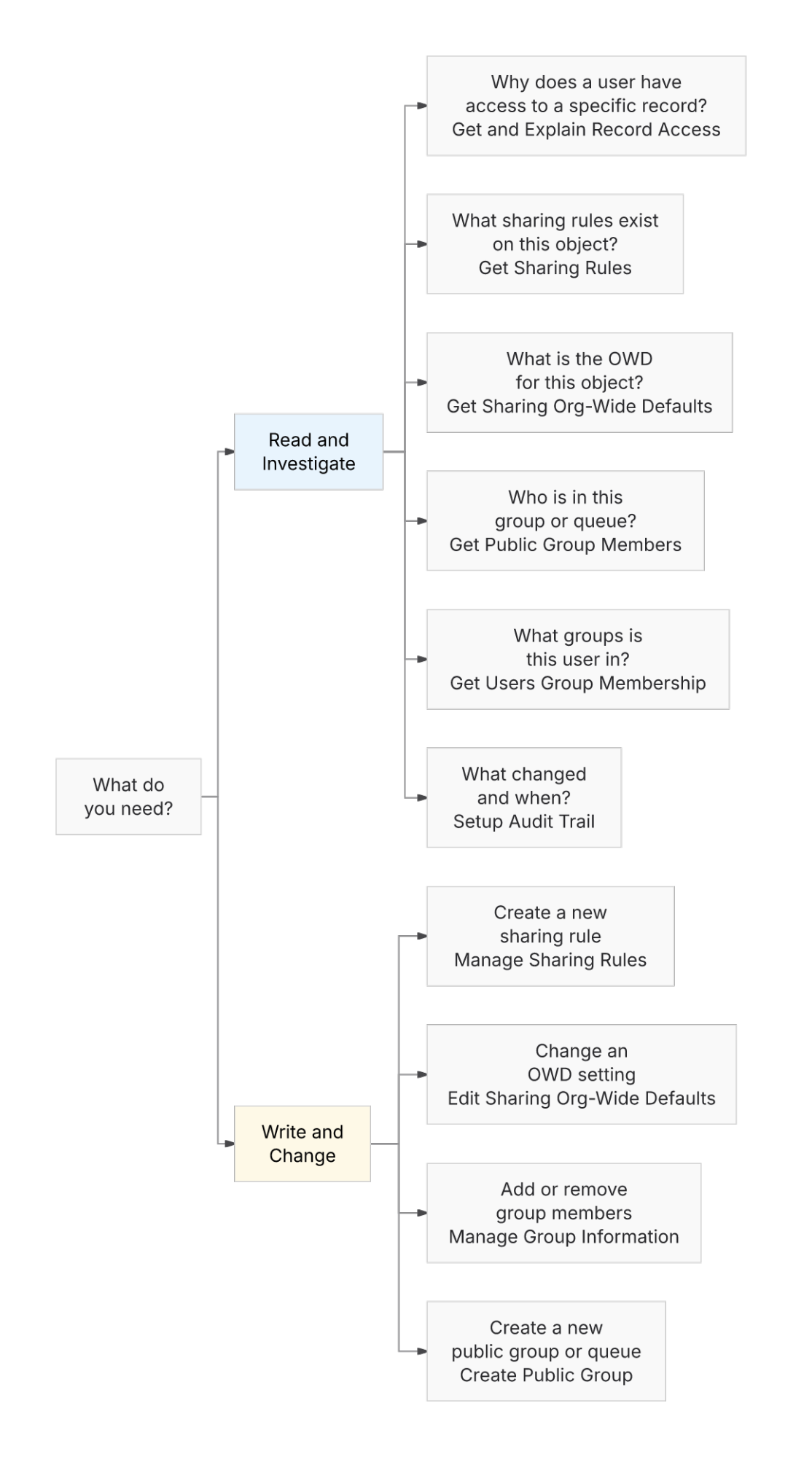
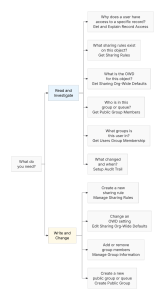
If you’ve ever wished you could just ask your org a question about sharing instead of hunting through menus, that’s exactly what Setup with Agentforce delivers. In the Spring ’26 release, it gives you a powerful set of sharing and access actions that you can use through natural conversation. These actions fall into two categories: Read and Investigate (for querying and auditing) and Write and Change (for making corrections). Here’s what each one does for you and how you might use it in your day-to-day work.
Read and Investigate Actions
You don’t need to pick a specific action — just type your question in natural language, and Setup with Agentforce automatically determines which action to invoke. The examples here show the kinds of questions you can ask; the agent handles the rest.
Let’s start with the actions that help you query and understand your current sharing configuration.
Get and Explain Record Access
This is the action you’ll probably reach for most. By providing a record ID and a user, the agent gives you a row-by-row breakdown of every mechanism — from team memberships to sharing rules — that grants that specific user access. No more guesswork, no more manually cross-referencing multiple Setup pages.
- Example prompt: “Explain why Marcus Liu has access to the Acme Corp Opportunity.”
Get Sharing Rules and Get Sharing Org-Wide Defaults
Use these to instantly see the full scope of your security configuration for any object. Want to know the OWD for Opportunities? Or see every sharing rule that could be opening up Account access? Just ask.
- Example prompt: “Show me all the sharing rules on the Account object.”
Get Public Group Members and Get Users Group Membership
Group membership is often where sharing goes stale; people change roles, projects wrap up, but the group memberships linger. The agent can retrieve members of any public group or queue, flip it around and show you all the groups a specific user belongs to, or compare membership across groups to spot overlap or gaps.
- Example prompt: “Who are the current members of the West Region Sales public group?”
- Example prompt: “Compare the members of the West Region Sales group with the APAC Support queue.”
Setup Audit Trail
Need to know who changed an OWD setting or created a sharing rule last month? Ask the agent to filter your audit trail by user, date, or action type for instant accountability — no CSV exports required.
- Example prompt: “Show me all sharing-related changes made in the last 30 days.”
Write and Change Actions
When your investigation reveals something that needs fixing, you don’t have to switch context or navigate to a different Setup page. Here are the write actions available.
Manage Sharing Rules
Create new sharing rules for an object to grant access based on criteria or group membership.
- Example prompt: “Create a new criteria-based sharing rule on Opportunity that gives Read access to the Finance Review group for all Opportunities with Amount greater than $100,000.”
Edit Sharing Org-Wide Defaults
Update OWD settings when your security requirements change.
- Example prompt: “Change the OWD for the Case object to Private.”
Manage Group Information
Add or remove group members to keep membership current as your teams evolve.
- Example prompt: “Remove inactive user Jordan Wells from the EMEA Partners group.”
Create Public Group
Create new public groups or queues for new teams or projects.
- Example prompt: “Create a new public group called ‘APAC Partner Managers’ and add the following users…”
The beauty of this approach is that everything stays in one conversation. You investigate, you find the issue, and you fix it — all without losing your train of thought.
Put it into practice: Your sharing audit workflow
Now that you know what tools are at your disposal, let’s talk about how to put them to work in a structured way. A regular sharing audit is one of the best things you can do to maintain a secure, well-governed org, and Setup with Agentforce makes each step a lot faster.
How often should you run this? That depends on your org. A large enterprise with frequent team changes might run this monthly. A smaller org or nonprofit with a solo admin might find that every 6 months is the right cadence. The important thing is that you have a repeatable process and that it happens consistently.
Here’s a six-step workflow you can adapt to your needs.
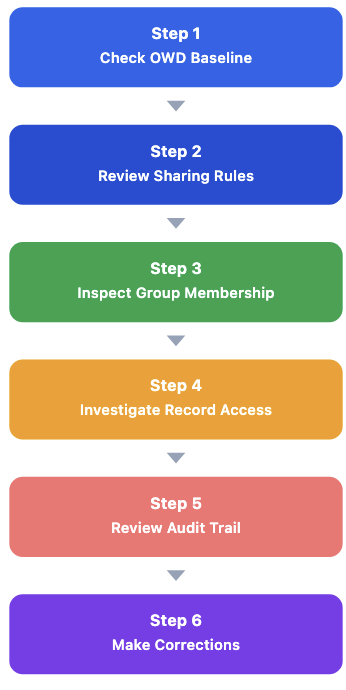
Step 1: Define Your OWD Baseline. Your goal here is to pinpoint any OWD settings that deviate from your established data security policies. To save time, look for the gaps. Concentrate on objects where visibility is broader than necessary. If an object isn’t set to Private, it warrants a closer look.
Example prompts:
- Identify non-Private OWDs to find potential exposure points. “What are the current OWD settings for Opportunities?” or “Explain the internal sharing model for the Opportunity object.”
Run this check for your core objects like Account, Contact, and Case, as well as any custom objects housing sensitive information.
- Audit internal vs. external access if you have Digital Experiences active. “What is the external sharing model for Accounts?”
Watch for: External OWDs that are more open than internal ones. This is a major red flag that should only exist by design.
Step 2: Perform a Sharing Rules Audit. Look for rules that have become outdated, redundant, or give more access than required. Map out your sensitive objects first, then dig into the rules for each. Consider an object “sensitive” if it includes:
- Financial records such as Opportunities, Quotes, or custom billing objects
- Personally Identifiable Information (PII) on Lead or Contact records
- Confidential data found in Cases, Contracts, or HR-related objects
Example prompts:
- Query the rules for every sensitive object: “Show me the sharing rules for Leads” or “Which Opportunity sharing rules grant access to the Finance public group?”
- Isolate by rule type for better focus: “List all owner-based sharing rules for the Lead object.”
Step 3: Validate Public Group Integrity. Ensure that the groups driving your sharing rules contain the correct users and nobody else. Don’t get overwhelmed by auditing every group. Focus on those referenced in your sharing rules. For each one, look for users who should not have access.
Example prompts:
- Identify active sharing groups based on your Step 2 results. These are your priority targets, as they directly impact data visibility.
- Review membership for each group: “Who are the members of the ‘East Coast Sales’ group?”
- Spot inactive or incorrect members: “Is Marcus Liu still a member of the ‘Strategic Accounts’ group?”
Verify if each user’s current role still requires the access granted by that group.
- Check the footprint of users who have changed roles: “Show me all public group memberships for Sarah Chen.”
- Compare memberships to identify discrepancies: “Compare the group memberships of Marcus Liu and Sarah Chen.”
Step 4: Deep-Dive into Individual Record Access. Resolve access-related support tickets and perform proactive spot-checks on high-value records. Use this phase to clear your queue of “access denied” issues and verify that your most sensitive data isn’t exposed to the wrong people.
Example prompts:
- Trace the access path for specific records: “Explain why the ‘Standard User’ has access to the Acme Account.”
- Investigate unexpected visibility: “Why can Marcus Liu view Case 0012345, but Sarah Chen cannot?”
Step 5: Review Historical Changes. Monitor your configuration for any drift that occurred since your last audit. Focus your efforts on identifying undocumented or unauthorized modifications rather than reviewing every single log entry.
Example prompt:
“Show me all changes to sharing configuration from the last 30 days.”
Step 6: Apply Corrections in Real Time. Close the loop by fixing the issues you uncovered directly within your Agentforce conversation like OWD Adjustments, Sharing Rule Management, Membership Cleanup, Queue and Group Updates, or Creating New Access Structures.
When you follow this process consistently — whatever cadence works for your org — you build something invaluable: a sharing configuration you can trust is current, intentional, and free of the access drift that naturally accumulates over time. Instead of reacting to “why can’t I see this record?” tickets or scrambling during a security review, you’re proactively maintaining a clean security posture. That’s less firefighting and more strategic confidence in your org’s data governance.
Can I trust the agent with my org’s security?
This is the right question to ask — and if you’re asking it, that instinct is what makes you a great admin. If you’ve built a strong security foundation in your org (thoughtful OWDs, well-structured role hierarchies, deliberate sharing rules), you’ve already laid the groundwork for the agent to operate safely. The security posture you built is what the agent respects and works within. All that effort you’ve invested in getting your org’s security right? It extends directly to how the agent behaves.
Specifically, here’s how trust is maintained.
- Your permissions are the boundary. The agent operates entirely within your existing permissions; no privilege escalation occurs. It can only see and do what you can see and do in Setup.
- Every write action requires your explicit approval. Before the agent makes any change, it presents a plan card that you must confirm. Nothing happens to your org without your say-so.
- Full auditability. Configuration changes (writes) are captured in the Setup Audit Trail. Read and agent interactions are governed and logged via the Einstein Trust Layer and Event Monitoring, not the Setup Audit Trail. You always have a complete record of what was changed, by whom, and when.
- Governed by the Einstein Trust Layer. Your data remains secure within Salesforce’s trust architecture, with the same protections applied to agent interactions as to any other platform operation.
- How do you know the agent is right? The agent surfaces the same data you’d find by navigating Setup pages manually, it’s reading from the same source of truth. You can verify any answer by cross-referencing with the corresponding Setup page. For record access explanations, the agent returns the same sharing reasons you’d see in the Sharing button on a record detail page. Think of it as a faster path to the same information, not a different source.
The bottom line: You’re not giving up control by using Setup with Agentforce. You’re gaining a faster, more conversational way to exercise that control — backed by the same security foundation you’ve already built.
What’s coming soon
Spring ’26 is only the beginning. Watch for these new features in upcoming releases.
- Edit sharing rules via the agent: Currently it’s create-only; soon you’ll be able to modify existing rules conversationally without deleting and recreating.
- Sharing Sets: Wire up external access effortlessly. Sharing Sets act as a “bridge” to extend record access to high-volume Experience Cloud portal users. Soon, you’ll be able to create, view, and modify your sharing sets and access mappings conversationally using Setup with Agentforce.
- Proactive Org Health signals: You already have insight into your org’s Security Health Check through Org Health; future versions may proactively flag sharing misconfigurations before they become tickets or audit findings.
Want to stay informed and share your input?
Resources
Setup with Agentforce is available at no additional cost in Spring ’26 with a generous usage cap. Once enabled, the agent appears as a panel on the right side of any Setup page; just click the icon and start typing. Enable it in Setup > Agentforce Agents > Setup with Agentforce.