As a Salesforce Admin, you’re not just responsible for configuring Salesforce; you’re constantly looking for ways to help your teams work more efficiently. Whether it’s reducing clicks, streamlining processes, improving user adoption, or helping teams collaborate, your goal is to make work easier.
Connecting Salesforce and Slack is a great first step toward bringing CRM and collaboration together. If you haven’t done that yet, our step-by-step guide has everything you need to get started.
Once the connection is in place, the next step is to make it easier for teams to collaborate around Salesforce records without constantly switching between applications.
That’s where Salesforce channels come in.
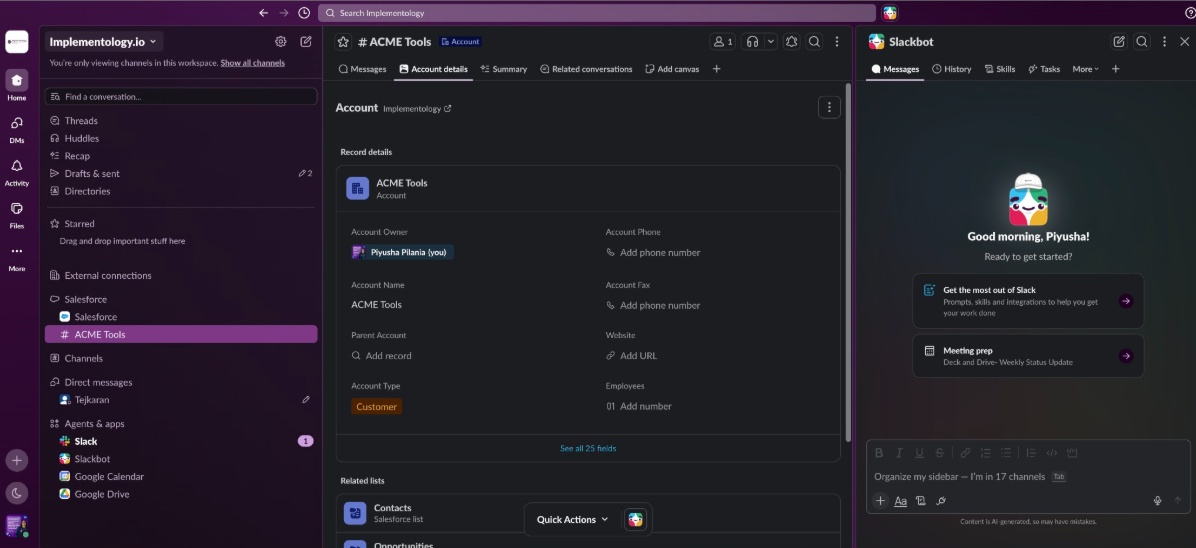
Salesforce channels create dedicated Slack channels for Salesforce records like Accounts, Opportunities, Cases, Campaigns, or any custom objects. Instead of conversations happening in one place and customer data living in another, teams can collaborate around the same record, keeping discussions, decisions, and CRM context together.
And when you combine Salesforce channels with Slackbot, collaboration becomes even more efficient. Teams can ask questions about customer records, summarize conversations, retrieve Salesforce data, and update records, all from within Slack.
Defining Salesforce channels
Think about how teams typically collaborate today. A sales rep updates an opportunity in Salesforce, asks a question in Slack, shares a file in another channel, and schedules a meeting to align on next steps. Before long, the conversation is spread across multiple places, making it difficult for everyone to stay on the same page.
Salesforce channels solve this by bringing CRM records and conversations together in a dedicated Slack channel for each record. Instead of searching through messages or switching between applications, teams have a single place to collaborate while staying connected to the latest Salesforce data.
Some of the key benefits include:
- Collaborate around Accounts, Opportunities, Cases, Campaigns, and custom objects.
- Keep conversations connected to the right Salesforce record.
- Reduce context switching between Salesforce and Slack.
- Improve visibility across Sales, Service, Marketing, and Operations.
- Bring AI into the conversation with Slackbot to summarize records, answer questions, and help users take action faster.
Now that you understand why Salesforce channels matter, learn how to enable them in your Salesforce org.
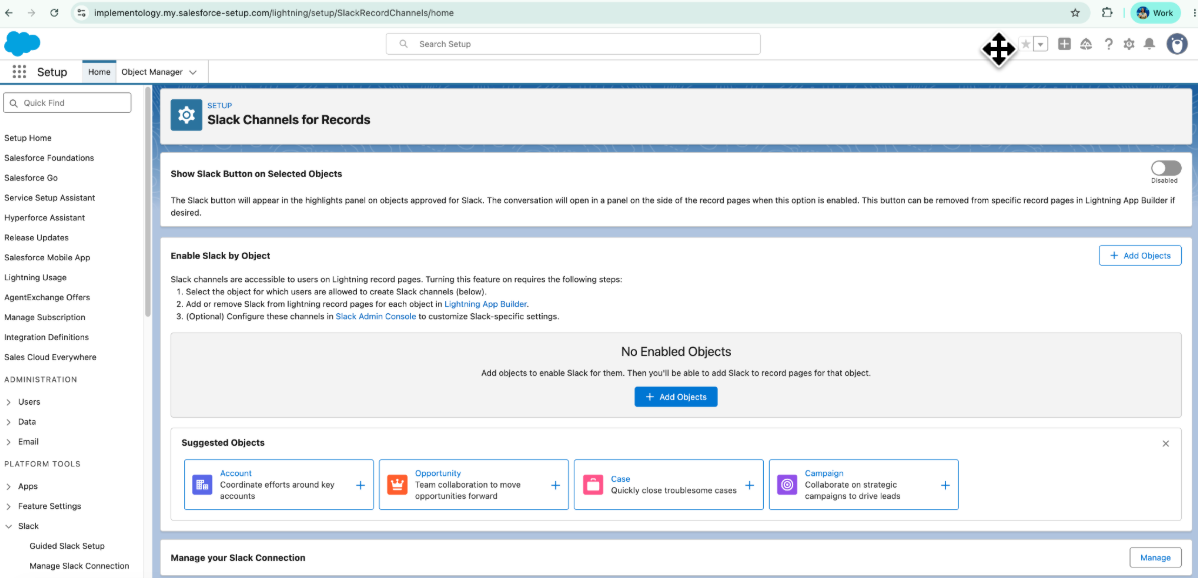
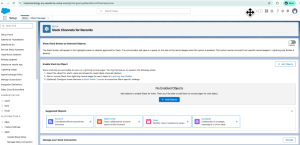
Step 1: Enable Salesforce channels
- Navigate to Setup.
- Search for Slack Channels for Records.
- Enable Show Slack Button on Selected Objects.
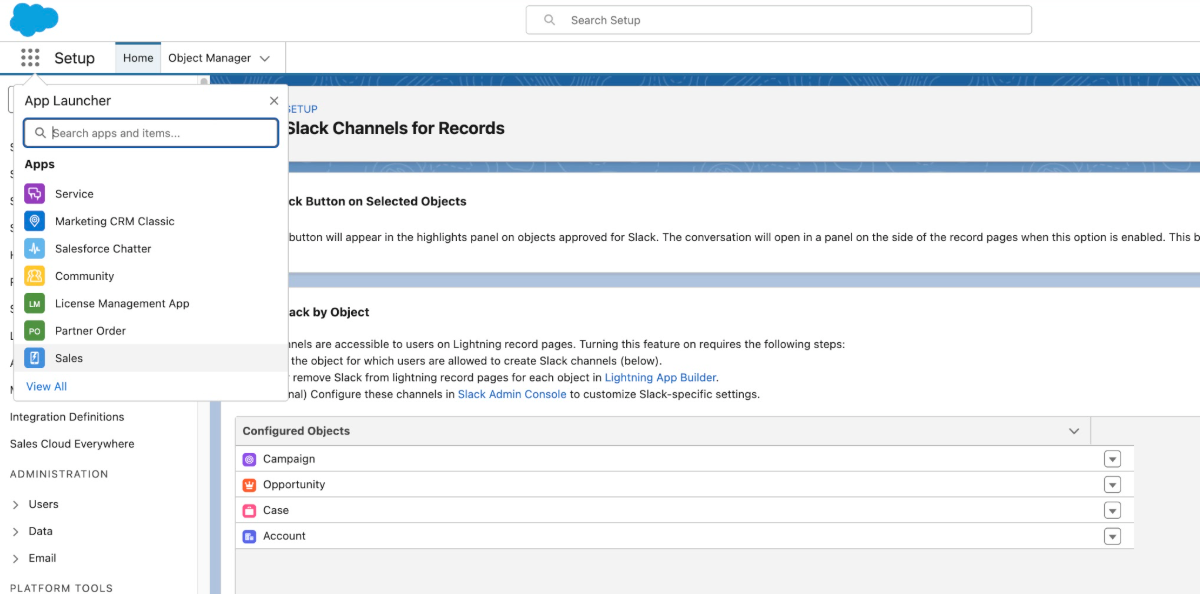
Step 2: Select objects
After enabling the Slack button, choose the Salesforce objects where users should be able to create Salesforce channels.
You can select objects from the suggested list or add them manually using Add Objects.
For many organizations, a good starting point includes:
- Accounts
- Opportunities
- Cases
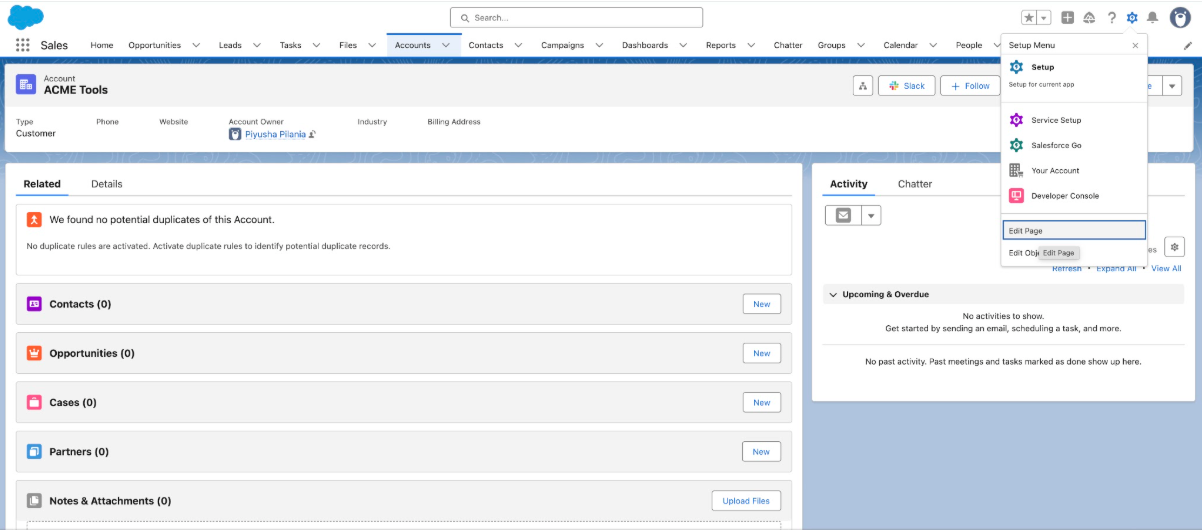
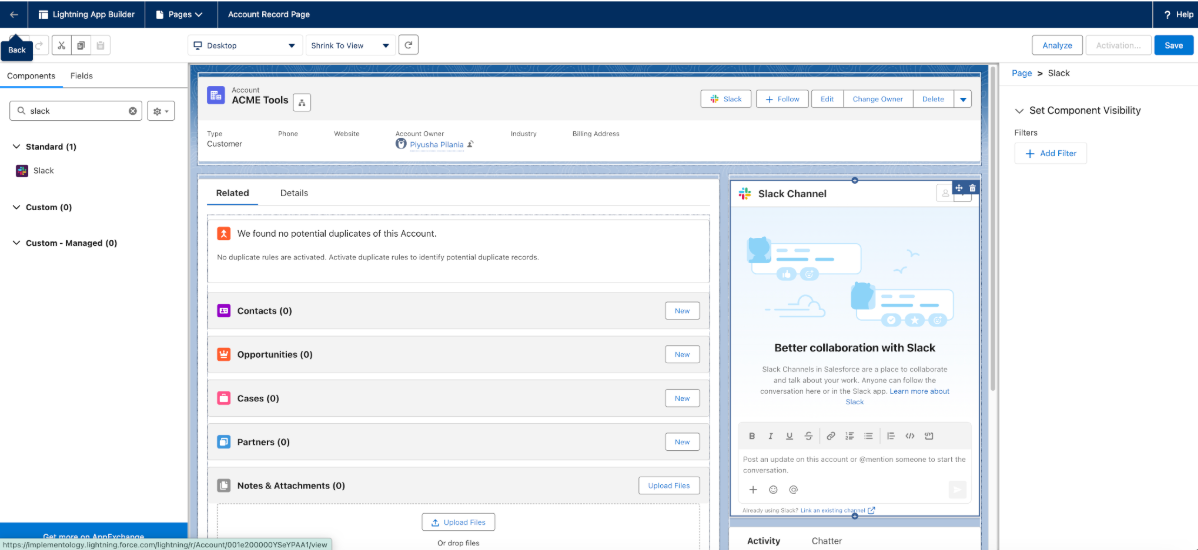
Step 3: Add the Slack component to Lightning record pages
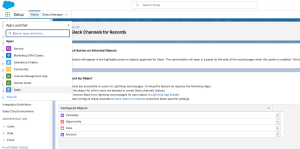
After enabling record channels, add the Slack component to the Lightning record pages where users collaborate most frequently.
For example, to add the Slack component to the Account record page:
1.Open any Account.
2. Select Edit Page.
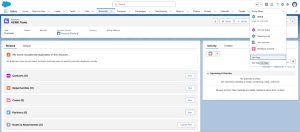
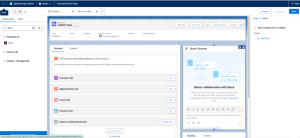
3. Search for Slack in the Lightning App Builder.
4. Drag the Slack component onto the page.
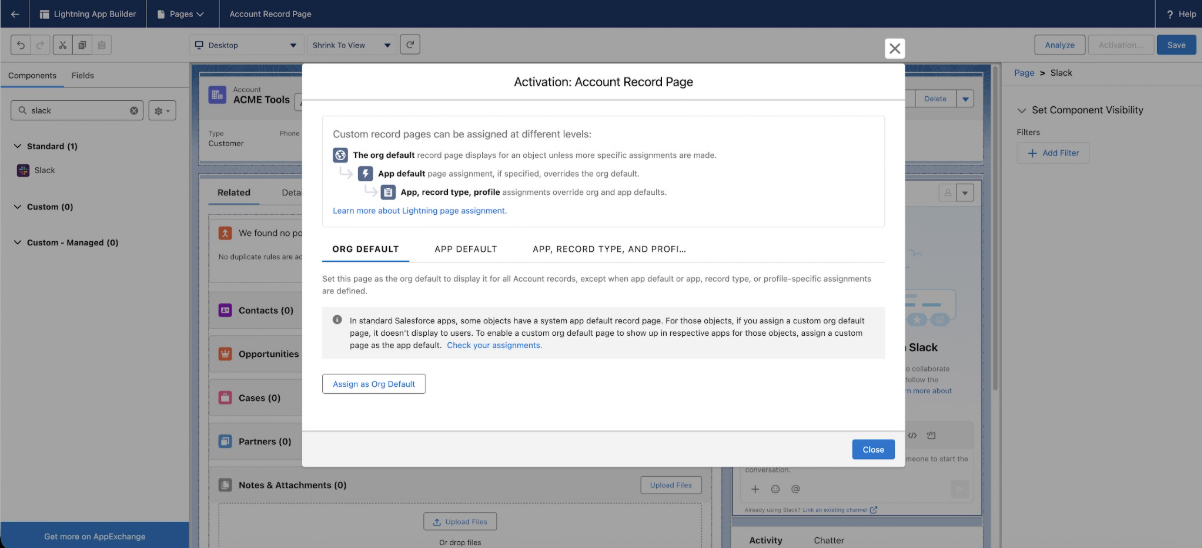
Step 4: Save and activate
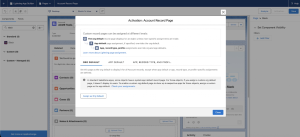
Save the Lightning page.
Activate it as one of the following:
- Org Default
- App Default
- By App, Record Type, or Profile
This makes Salesforce channels available directly from the record page.
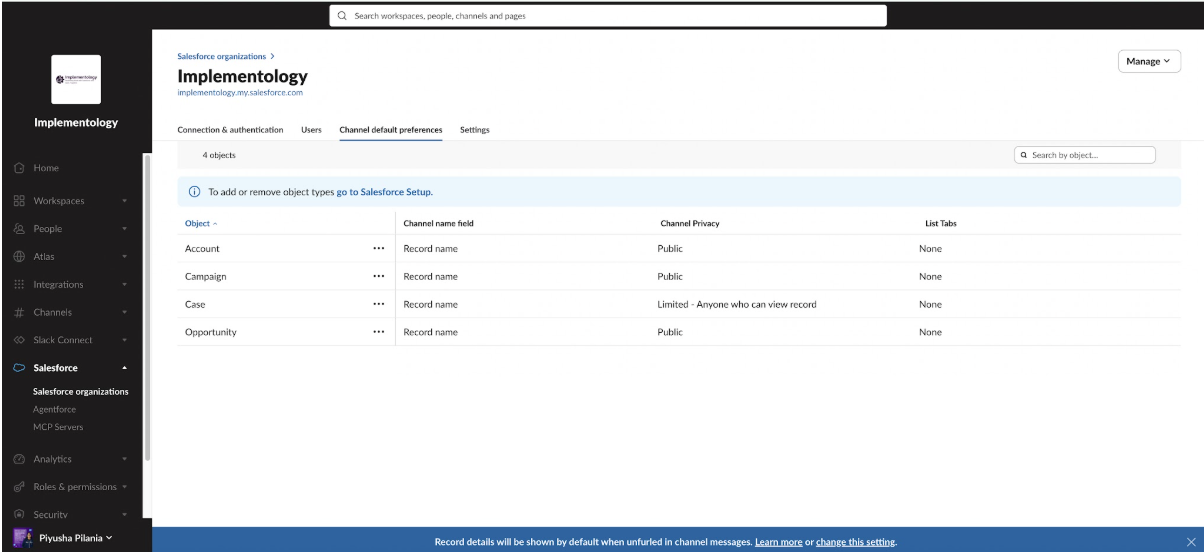
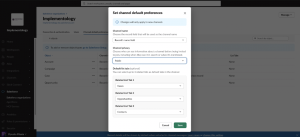
Step 5: Configure channel preferences
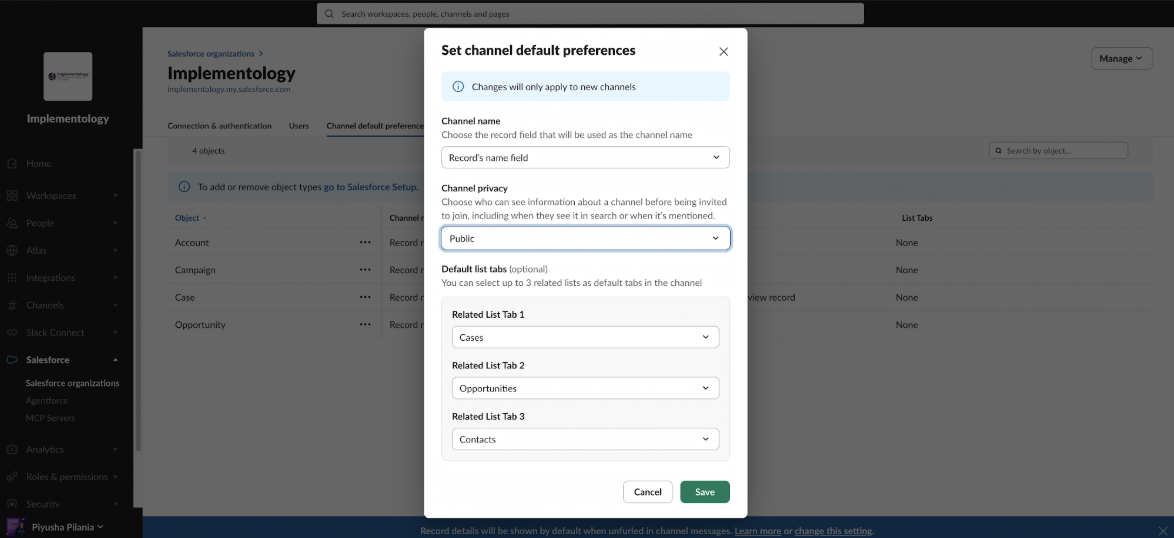
Next, configure the default channel preferences from your Slack organization’s settings.
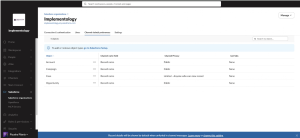
For each channel, admins can customize:
- Channel Name
- Channel Privacy
- Related Lists displayed inside the channel
These settings create a more consistent experience across the organization.
Step 6: Start collaborating
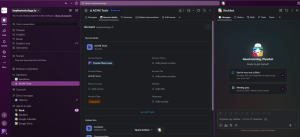
Once configuration is complete, users can create Salesforce channels directly from Salesforce.
Each Salesforce channel is automatically associated with its record, making it easy to see conversations, collaborate with teammates, and keep everyone aligned.
Salesforce channels + Slackbot: A powerful productivity duo
Salesforce channels provide a dedicated space for teams to collaborate around customer records. Slackbot brings AI into those conversations, helping teams find information, take action, and stay productive without switching between applications.
Imagine returning from a week of vacation and opening the Slack channel for an important account. Instead of scrolling through hundreds of messages or opening multiple Salesforce records, simply ask Slackbot:
“Catch me up on the Acme account.”
Within seconds, Slackbot summarizes everything that matters.
The productivity gains don’t stop there. Slackbot helps users stay in the flow of work by handling many common Salesforce tasks directly from Slack.
For example, Slackbot can help teams:
- Create or update Salesforce records without leaving Slack.
- Get weekly account summaries before customer meetings.
- Summarize campaign performance and identify key trends.
- Surface related records and previous customer interactions.
- Answer questions using Salesforce data and conversations from Slack.
- Send reminders for follow-ups, renewals, and important next steps.
Instead of spending time searching for information across multiple applications, teams can ask a question, receive an AI-powered answer, and take action, all from within the same conversation.
Salesforce channels become the central workspace for every customer, while Slackbot works alongside the team, proactively sharing updates, surfacing insights, and keeping everyone aligned. The result is fewer status meetings, less context switching, and more time focused on customers.
Get started with these best practices
Before rolling Salesforce channels out across the organization:
- Start with objects that have the highest collaboration needs, such as Accounts, Opportunities, Cases, and Campaigns.
- Configure channel naming conventions before users begin creating channels.
- Add the Slack component to Lightning record pages used most frequently.
- Pilot Salesforce channels with a small group before expanding organization-wide.
- Encourage teams to use Slackbot to get a full picture of their CRM data and update Salesforce directly from Slack.
Connecting Salesforce and Slack is only the beginning. By enabling Salesforce channels and pairing them with Slackbot, admins create a workspace where CRM data, conversations, and AI come together naturally. The result is faster collaboration, fewer meetings, and teams that can focus more on customers and less on switching between tools.
Resources