As a Salesforce Admin, you’re the guardian of your Salesforce implementation. You’re the first line of defense in keeping your org running smoothly, supporting users, and ensuring your setup is stable and scalable. So when someone says, “Salesforce feels slow,” you’re expected to have answers—fast. Until recently, getting real performance insights often meant logging a support case or waiting on reports. Scale Center changes that by putting near real-time performance visibility directly in your hands.
Scale Center revolutionizes how teams approach development, testing, and monitoring by providing self-serve and near real-time access to org performance metrics.
This post covers the latest capabilities in Scale Center and, more importantly, how you can use them in your day-to-day admin work.
1. Expanded access now available for all major Salesforce editions
What changed
Previously, deep performance insights were a luxury primarily available to Unlimited Edition (UE) and Signature customers. We’ve announced a major product expansion to change that. Scale Center is now generally available (GA) for all major editions including Enterprise Edition (EE) and Professional Edition (PE) orgs. This means admins across all major editions can now access deep performance insights for their production and full copy sandbox orgs.
How to use this in your day-to-day
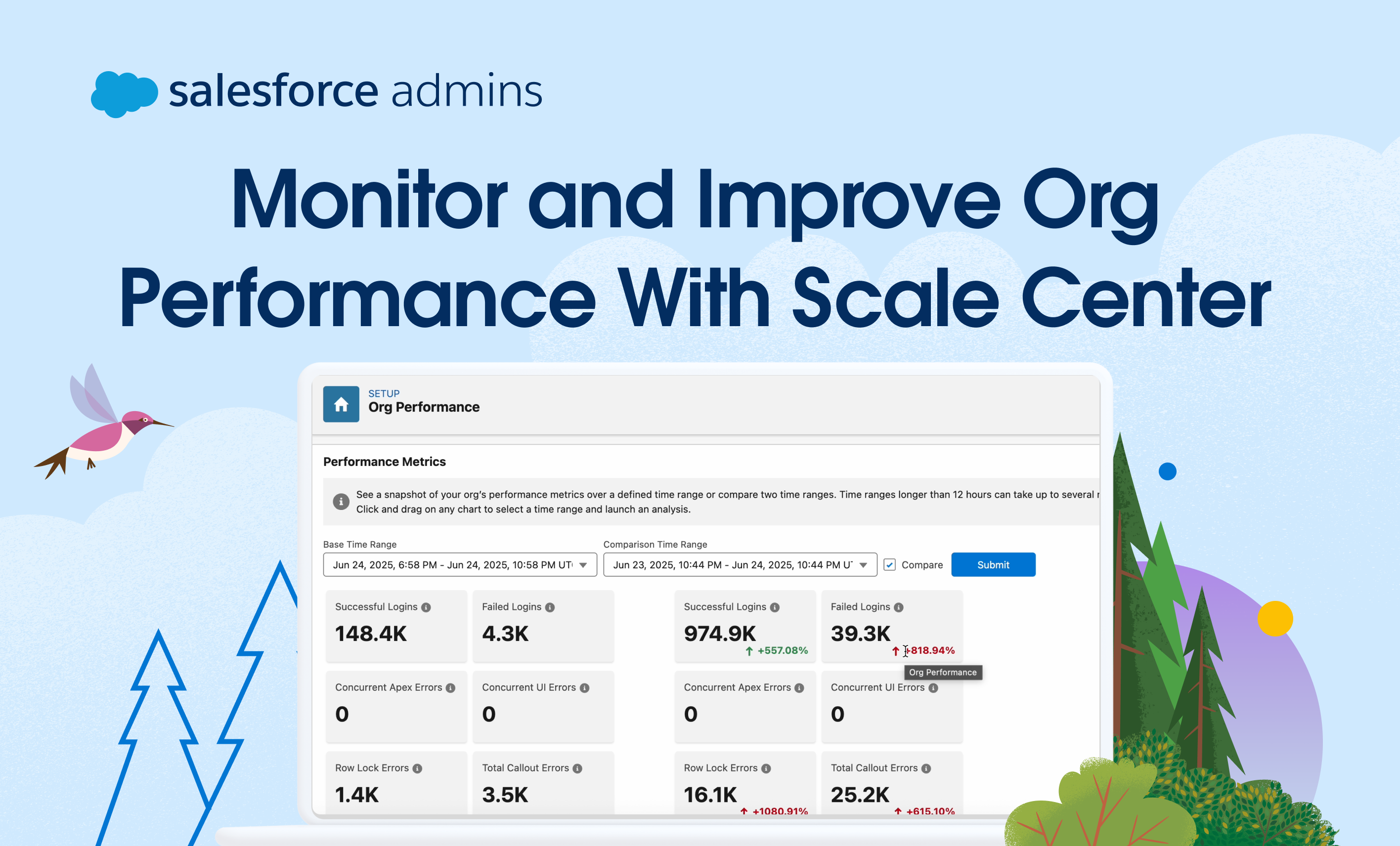
When users report slowness, you no longer have to guess whether the issue is data volume, Apex behavior, or something external. You can immediately check org-level performance metrics yourself—before opening a support case or escalating internally.
Real-world scenario
Users complain that record saves feel slower this week.
- Open Scale Center.
- Navigate to Org Performance.
- Look for spikes in Database CPU or Row Lock activity. If you see a clear data-related spike, you know the issue is internal—not network-related—and can focus your investigation accordingly.
How to access
Customers have access to Scale Center by default for production and full copy sandbox orgs. Scale Center is also now available to all Partners and Independent Software Vendors (ISVs). New Large Data Volume (LDV) orgs have Scale Center available by default. This expansion makes sure that more admins than ever can address application scalability proactively rather than reactively.
2. Get answers fast with on-demand insights
What changed
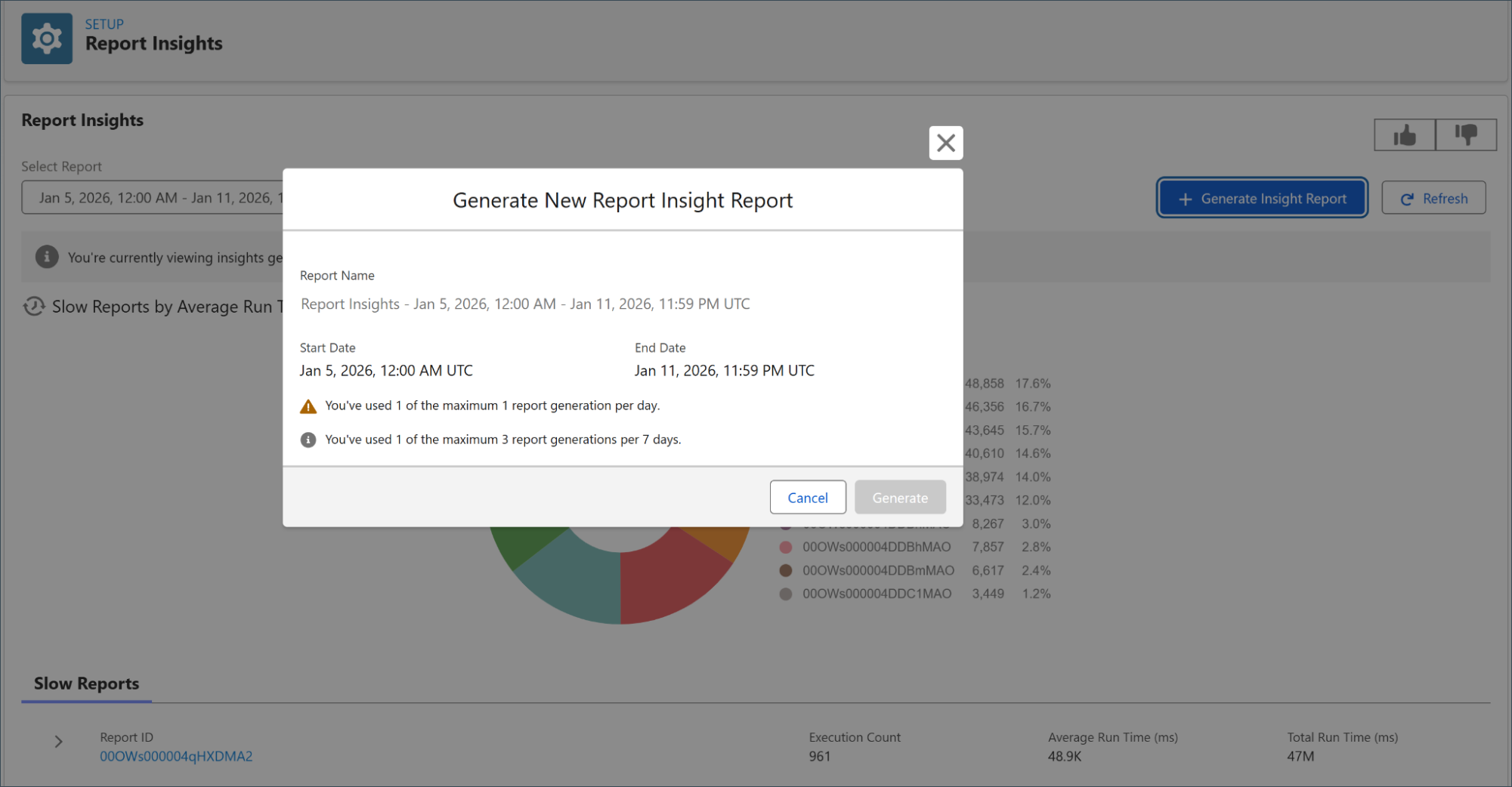
Performance insights—previously generated on a schedule—can now be run on demand.
Admins can now generate insights immediately when they need them. Currently, customers can generate three on-demand insights per week per org.
How to use this in your day-to-day
This is the difference between reacting later and acting now. When something feels off, you don’t wait for a weekly report—you generate insights immediately and move forward with data.
Real-world scenario
A department reports that key reports are timing out before weekly meetings.
- Run an on-demand Reports Insight.
- Identify the slowest, highest-impact reports.
- Apply prescriptive recommendations (filters, scope adjustments).
Admins using these recommendations have seen significant improvements in report runtime—without rewriting everything from scratch.
How to access
Go to the Scale Insights leaf within Scale Center and the specific insight and generate the report on demand using Generate Insight report.
3. Search Insights
What changed
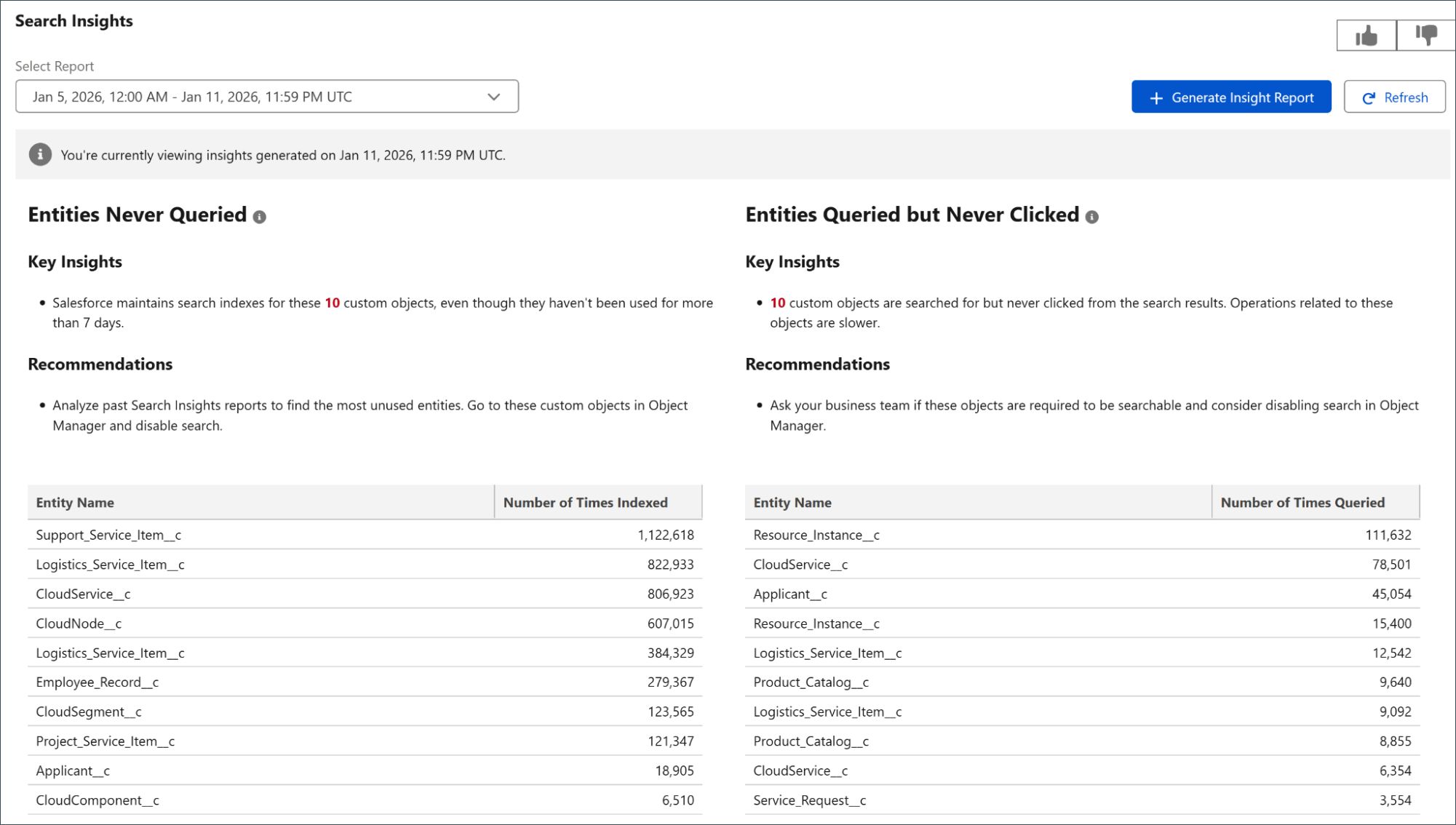
You can now generate on-demand insights into search performance, including unused searchable entities.
How to use this in your day-to-day
This improves search performance and gives you on-demand insights, recommendations, and best practices. Search indexing has a real performance cost. If objects are searchable but never used, or never queried, they’re quietly adding overhead. Disabling these reduces unnecessary indexing, boosting SOQL, DML, API, and UI performance.
Real-world scenario
You’re troubleshooting slow SOQL or DML operations.
- Run Search Insights.
- Identify entities enabled for search but never used.
- Disable search where it isn’t needed.
This reduces unnecessary indexing and improves both API and UI performance.
How to access
Navigate to the Scale Insights leaf within Scale Insights, and then click Search Insights and generate the Search Insights report on demand using Generate Insight Report.
4. Lightning Experience Insights (Open Beta)
What changed
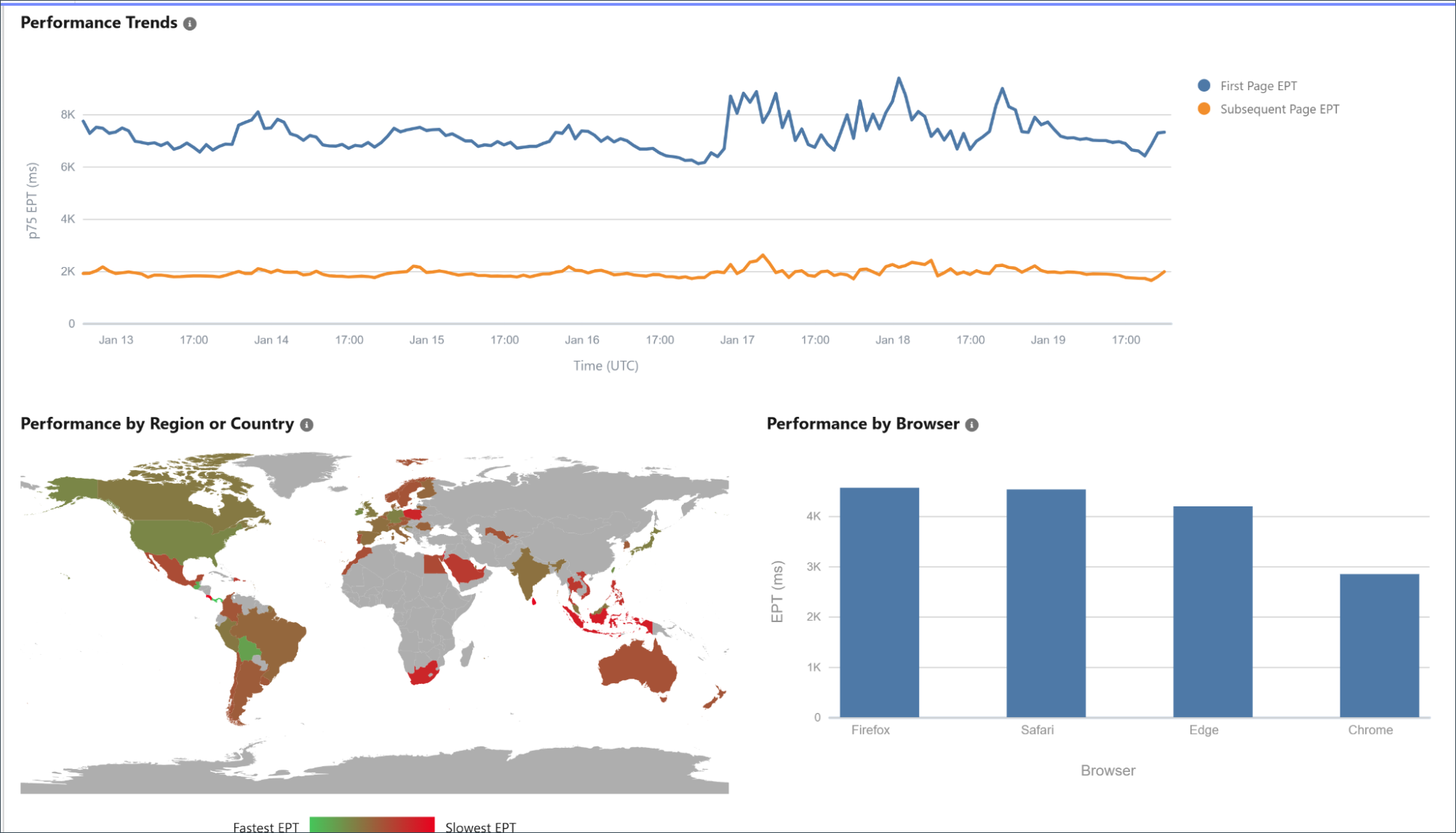
Lightning Experience (LeX) Insights brings Salesforce’s internal Lightning performance best practices directly into Scale Center, using Experienced Page Time (EPT) as the key metric. It helps admins optimize Lightning performance by identifying usability issues like slow page loads or interaction delays before they affect business operations.
How to use this in your day-to-day
EPT directly affects user adoption. If pages feel slow, users disengage—no matter how well the solution is designed.
Real-world scenario
Users complain that Opportunity and Case pages “take forever to load.”
- Generate Lightning Experience Insights.
- Review org-wide EPT trends.
- Identify slowest pages, components, browsers, or geographies.
- Get configuration recommendations such as:
- Secured Browser Caching
- Lightning Content Delivery Network (CDN) enablement
Instead of guessing, you now have evidence-based actions.
How to access
Navigate to the Scale Insights leaf within Scale Insights, and then click Lightning Experience Insights. Generate the Lightning Experience report on demand using Generate Insight Report.
5. Customer Success Score integration (Signature Customers)
What changed
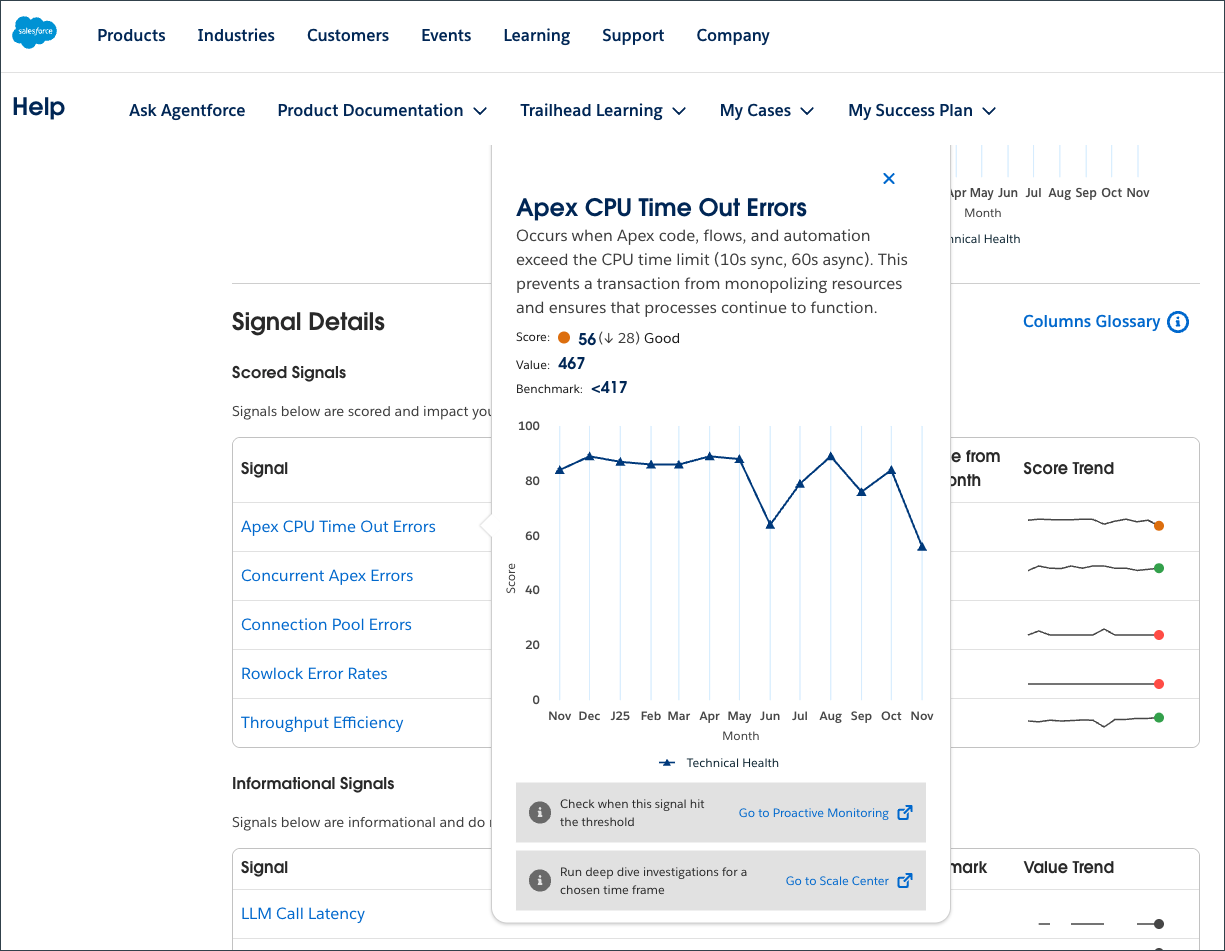
Understanding your org’s health is more streamlined. Scale Center is now deeply integrated with the Customer Success Score (CSS) Technical Health Score (THS) at the Signal Level.
How to use this in your day-to-day
Leadership reviews THS. You fix what’s underneath it to get sustained performance and reliability. Admins can use Scale Center for root cause analysis (RCA) in areas where their technical score is low, directly helping to improve the organization’s THS. This integration connects your daily performance metrics specifically to the broader health and stability goals of your Salesforce implementation.
Real-world scenario
Your THS is low due to Concurrent Apex Errors.
- Open Technical Health Score.
- Click through to Scale Center from the affected signal.
- Run investigations for the relevant time window.
- Use prescriptive recommendations to optimize slow Apex entry points.
Fixing the root cause improves both system health and leadership confidence.
How to access
You can open the CSS by visiting Customer Success Score. Navigate to My Success Plan, Customer Success Score, and Technical Health Score. Review the score for technical signals like Concurrent Apex Errors and Row Lock Errors. Click the Scale Center link to navigate directly to the product.
6. In-app feedback
What changed
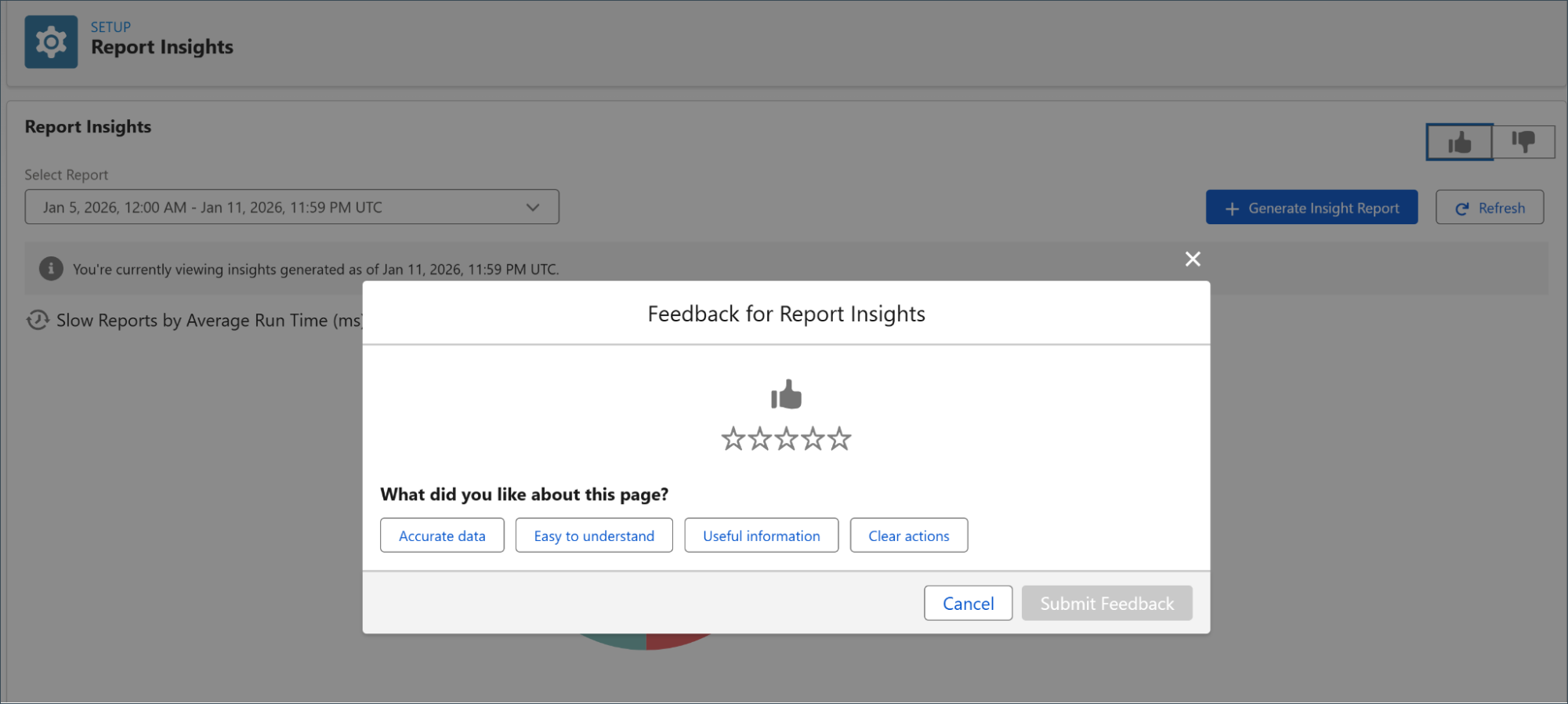
We invite you to help us shape the future of our product by sharing your feedback directly within the application. You can easily rate the features by using the thumbs up or thumbs down icons to let us know if our insights meet your needs. Your input is essential for us to turn the Voice of Customer into direct action, ensuring our tools continue to drive your business forward and create positive outcomes.
How to use this in your day-to-day
When insights are helpful—or when they’re missing details—you can tell the product team directly, in context.
Think of it as closing the loop between admin reality and product evolution.
How to access
Leverage the thumbs up or thumbs down feature at the top-right of the page to directly provide feedback on the features.
Why this matters
Scale Center isn’t just a monitoring tool—it’s a decision-making tool. With expanded access, on-demand insights, and actionable recommendations, you can move from reactive firefighting to proactive performance ownership.
And that’s the shift admins have been asking for.
Resources