Welcome to “How I Solved It.” In this series, we do a deep dive into a specific business problem and share how one Awesome Admin chose to solve it. This episode has a twist—the admin is me!
Key business problem
What’s the one case that makes your support team’s blood run cold? It’s the ‘all-caps’ email from a top-tier client. And, of course, they’ve attached a photo of the problem.
Let’s set the stage with our specific use case. We’re using a fictional online delivery company, Pronto. Here’s the nightmare scenario for their support team.
Sarah Jenkins from a high-value client, Apex Solutions, sends an ‘all-caps’ email. She’s furious because the $250 ‘Premium Seafood Platter’ she ordered for an executive meeting arrived looking like… well, a ‘sad shrimp garnish.’ And she attached a photo to prove it.
For the agent, David, this is the moment his stomach drops. He can clearly see the problem in the image. But the solution—the specific authorized remedy for a ‘catering failure’—is buried in a unique, 50-page Partner SLA PDF for that specific restaurant, Urban Eats Collective.
David is stuck. He doesn’t have 30 minutes to comb through legal text in the PDF while the angry client waits on the other end.
How do you analyze a pictures associated to a case to a read through a ~50 page PDF… in 30 seconds?
You don’t. You let the system do it. And that’s exactly what I solved with Agentforce.
Dive into the two flow actions and multi-modal prompt action I built to empower an AI employee agent to read both files and find the authorized solution in seconds.
How I solved it
Large language models (LLMs) have become really good at looking and deciphering images and reading and analyzing large amounts of text in a short amount of time. To solve the scenario, I thought, how can we get an AI employee agent into the action to assign the human agent reviewing new catering issues, review all the supporting documentation, and then analyze that information against our rules playbook (that is, restaurant partner SLA document)? It was fun building this. Let’s take a closer look at how I built two flow actions and the multi-modal prompt action my AI employee agent uses to read both files and find the authorized solution in seconds.
Before I configured my agent actions and built my employee agent, I needed to understand the business process and the pieces of information needed either by a human or AI agent to fully determine the best resolution to the catering issue.
Details of the catering issue
Any supporting documentation
The restaurant associated to the catering issue
Restaurant rules playbook (the restaurant partner SLA document): This is our grounding document, containing guidelines to use to resolve the issue.
Here’s where an agent would find said information.
Sarah Jenkins’ email created a case in Salesforce, assigned to David, our human agent.
Supporting documentation for each catering issue (that is, case) is stored as Case Attachments.
The restaurant associated to the catering issue is stored in a custom field called Restaurant in the case record.
Each restaurant has its own 50-page restaurant partner SLA document, titled <restaurant name>_Partner_SLA, which is uploaded into Files. In this case, the agent needs to review Urban Eats Collective’s partner SLA document to determine the resolution to the problem.
To get the case details, offending restaurant, and supporting documents, I needed access to the case record. To get access to the SLA document for the restaurant stored in Files, I needed the ContentDocument record.
When working with AI agents, you want to avoid building monolithic flows to handle your entire business process. Rather, chunk your automation into smaller modular flows as your agent will reason and determine when it needs to use specific actions to get its job done. Plus, a big pro for modular flows is that they’re reusable. Build it once, maintain it once, but use it many, many times. It’s all about working smarter, not harder.
That’s how I determined the need for two flow actions—one to retrieve information from the Case and the other to retrieve the file. We’ll go through these individual flow actions later on.
Next, I needed an LLM to help me take this information about the catering issue and analyze it against a 50-page document to determine the best action plan toward resolution. It would take 20-30 minutes to manually review the document, whereas the LLM can do this in a matter of seconds once we feed it the files. This was done using a prompt action.
Use a flow action to retrieve case data using the case number
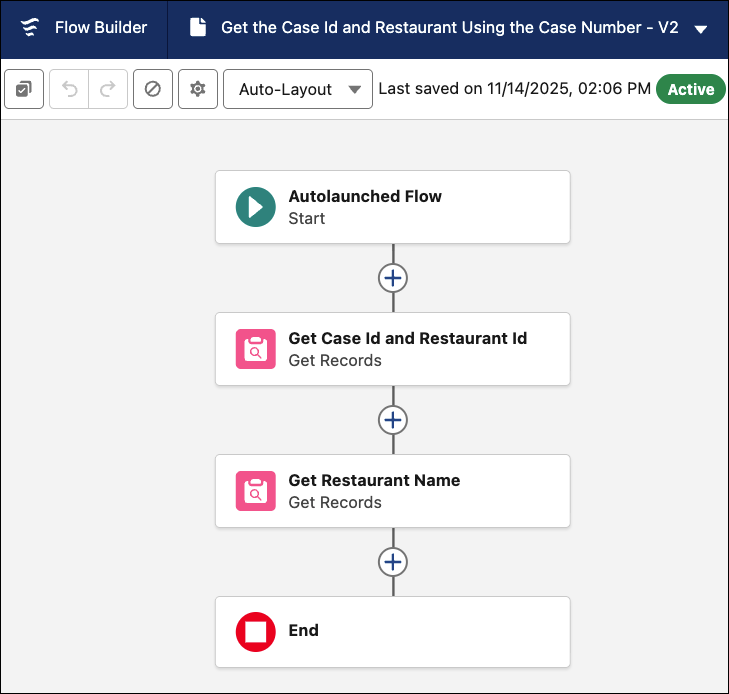
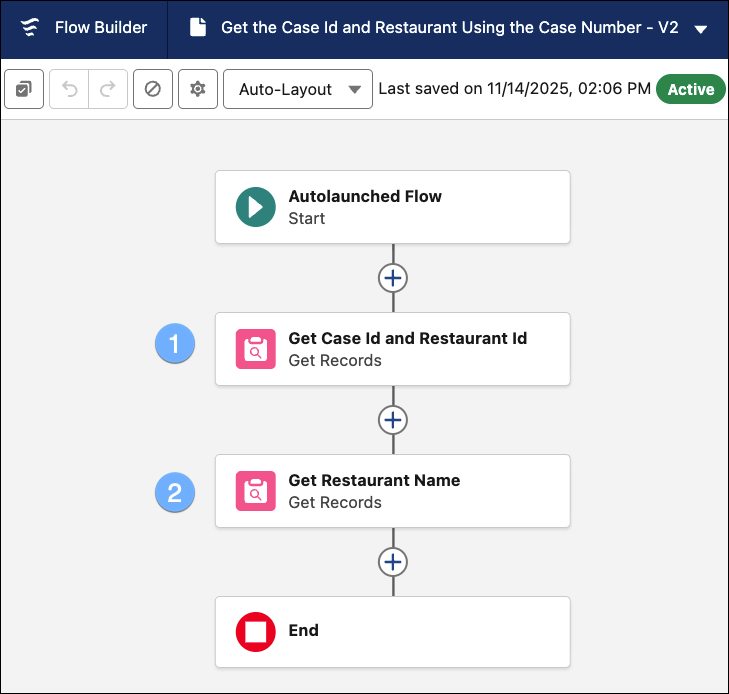
In an ideal world, we get the case data using the case record ID. I don’t know about you, but an 18-character record ID isn’t something I have in my back pocket. However, the case number might be. Chances are whoever is interacting with your agent will have a case number over an ID. This simple flow action (1) retrieves the case ID and restaurant ID using the case number and (2) gets the restaurant name using the restaurant ID.
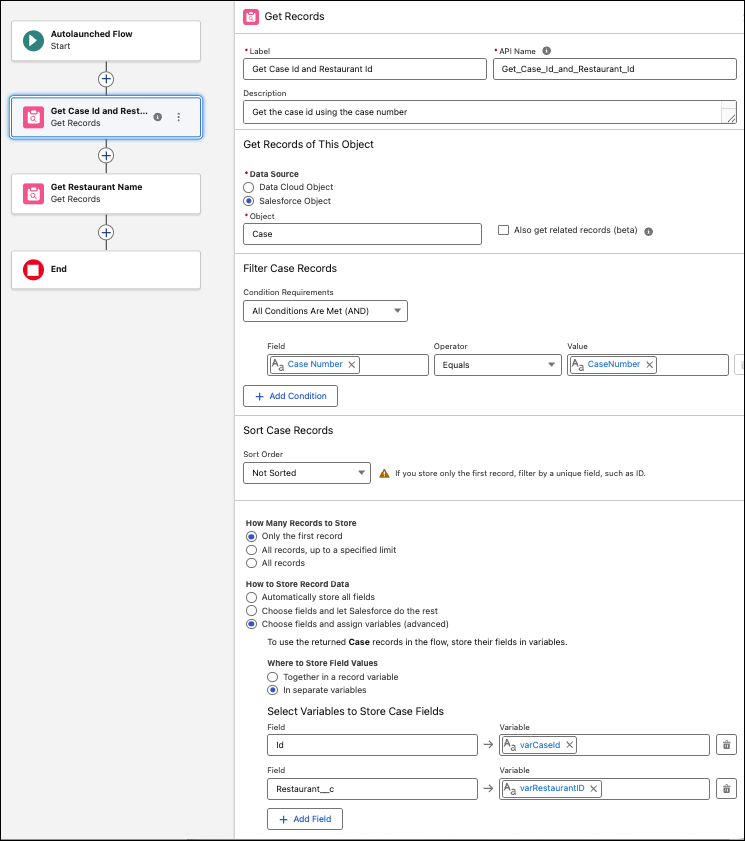
In the ‘Get Case Id and Restaurant Id’ Get Records element, we’re retrieving the case record using the case number that will be passed into our flow as a text variable by our agent. We’re specifically storing the case ID and restaurant ID in two separate variables that are available for output (data that will be available to our agent to use, if needed).
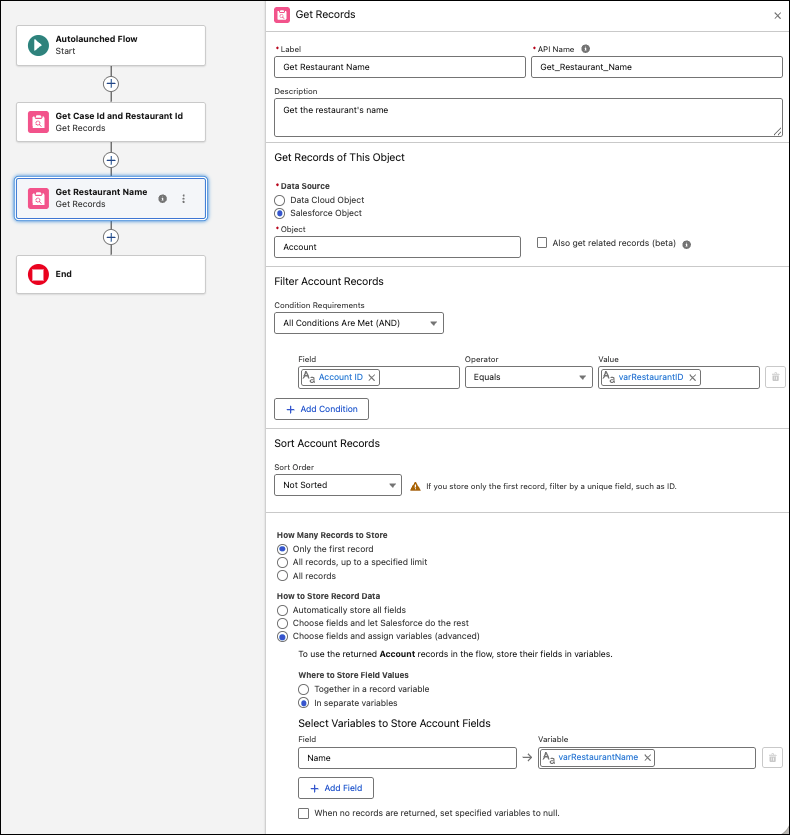
The ‘Get Restaurant Name’ Get Records element uses the restaurant ID found in the first element to find the account record. Once found, it saves the name in a text variable storing the restaurant name. varRestaurantName is a variable available for output for the agent to use to get the SLA document.
Use a flow action to retrieve the content document ID for the restaurant partner SLA PDF
I’d bet your user does not know the ID of the restaurant partner SLA PDF for the restaurant associated with the catering issue. Most likely, they don’t even know how to find it since it’s embedded in the URL. The piece of information we do know is that these SLA files follow a standard naming convention.
[Restaurant Name]+”Partner_SLA”.pdf
Rather than write a formula to create the file name given the restaurant name, AI will formulate the title of the content document for me. I’ll instruct my employee agent in natural language to take the restaurant name and put it into this format: [Restaurant Name]+”Partner_SLA” Add “_” in between each word of the restaurant name. For example, if the restaurant’s name is “She Rocks”, then the title of the content document is “She_Rocks_Partner_SLA”. We’ll see this later in my agent instructions.
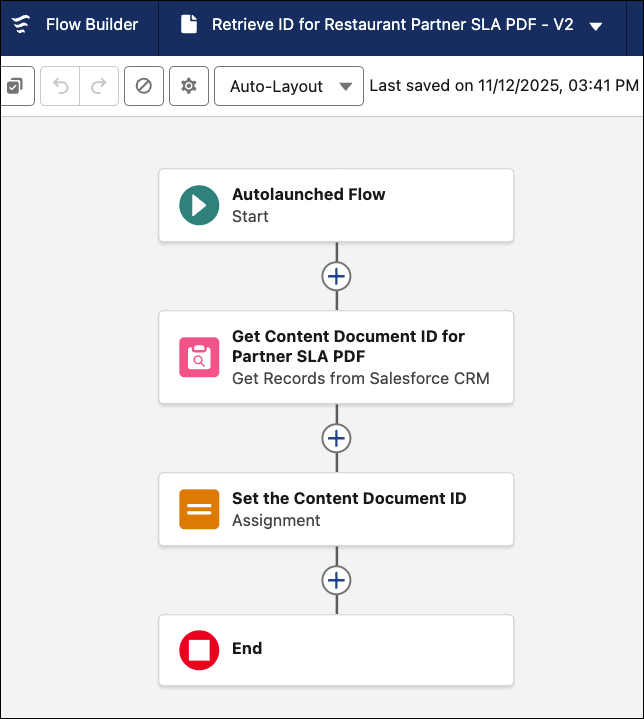
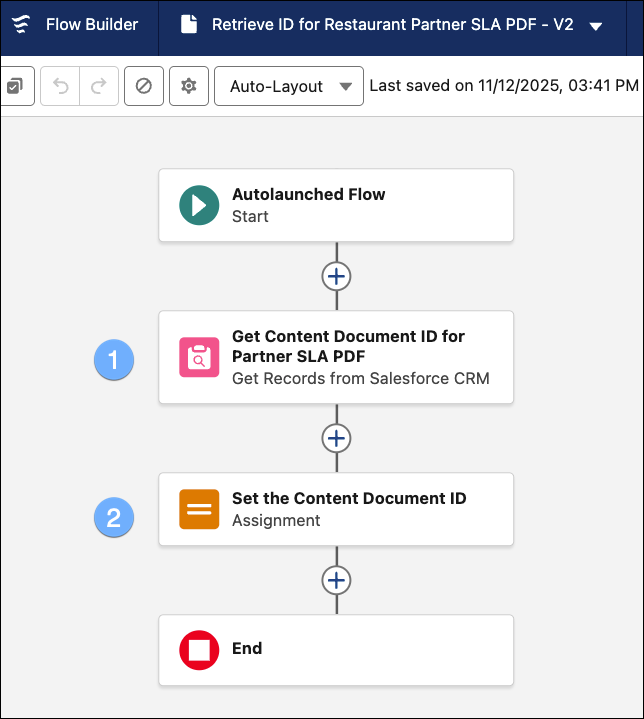
This flow action’s job to be done is to (1) retrieve the PDF using the title passed from the agent and (2) assign the ID to an output text variable for the agent to use.
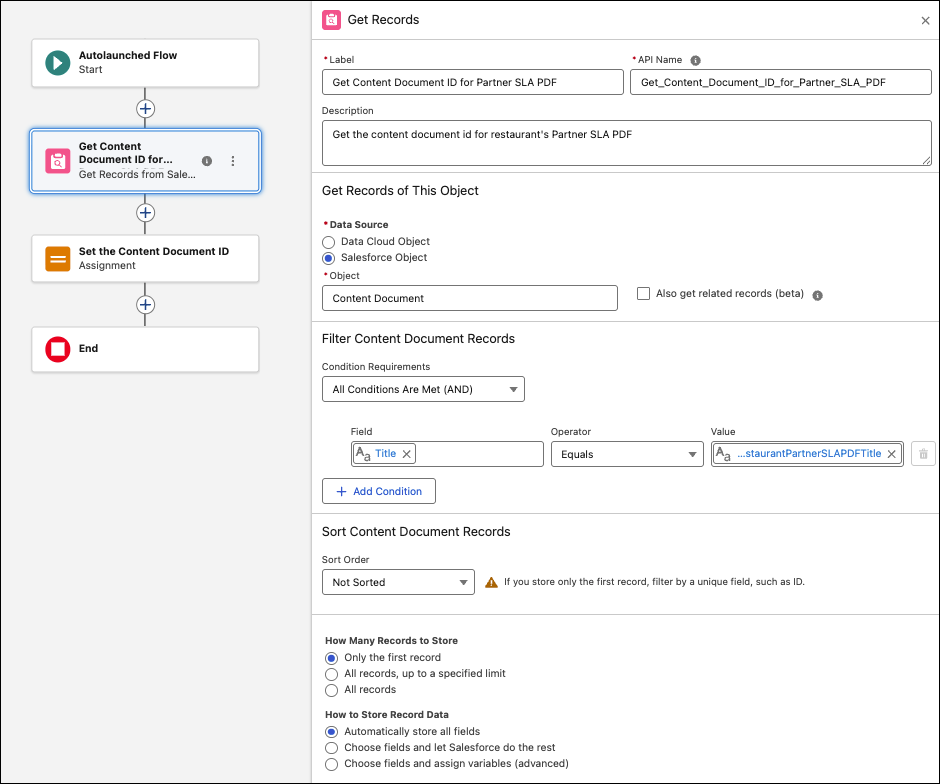
While you may think that your files are stored in the Files object, in the back end, Files is known as the Content Document object. In this ‘Get Content Document ID for Partner SLA PDF’ Get Records element, we’re searching for the specific title in the Content Document object.
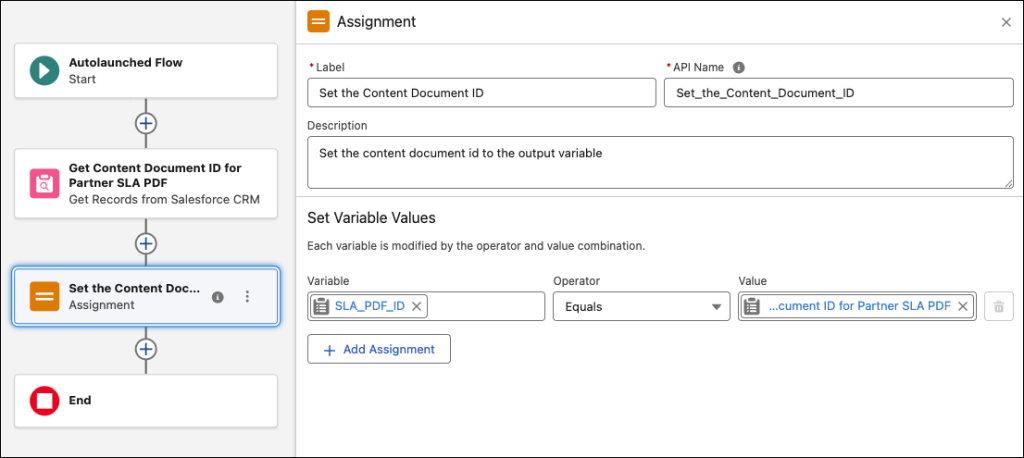
In the ‘Set the Content Document ID’ Assignment element, we’re taking the content document ID found in the previous element and storing it in a text variable that’s available for output.
Use a prompt template action to use multi-modal inputs to get more contextual, relevant outputs from AI models
The prompt builder now allows users to input and combine different data types, such as text, images, files, and potentially audio or video, in a single prompt. This capability enables us to automate more complex tasks that previously required manual human intervention. Now, we can prompt AI to extract information from an image and a PDF document simultaneously, which is what I did in this prompt template.
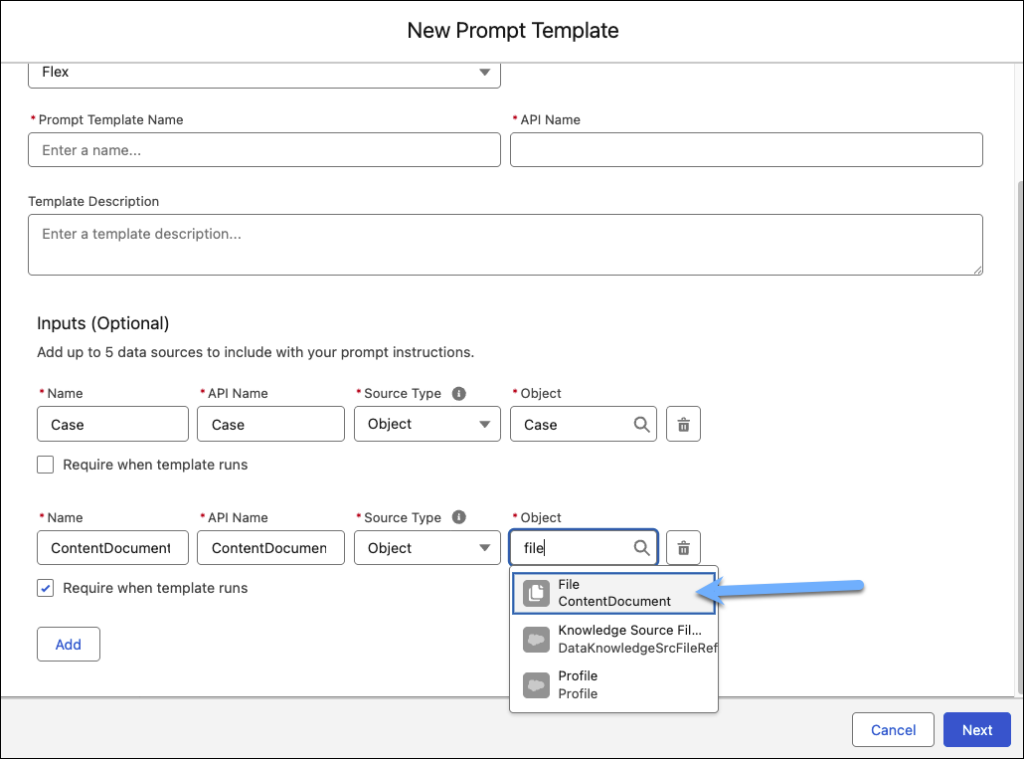
You can only use flex prompt templates in your agent actions. In our scenario, we need the AI model to use the PDF for grounding data but it will be pushed by the agent using the content document ID. If your prompt template needs to interact with files, search for the object using “File” (its object name) and not “ContentDocument” (its object API name). Additionally, in the example below, I configured the Case object as I need to pull in data related to the case record.
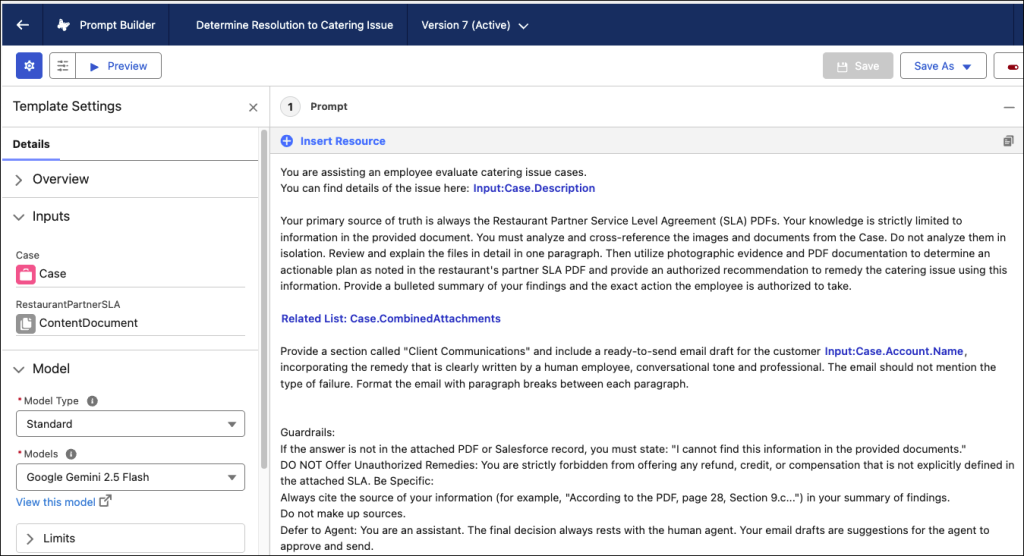
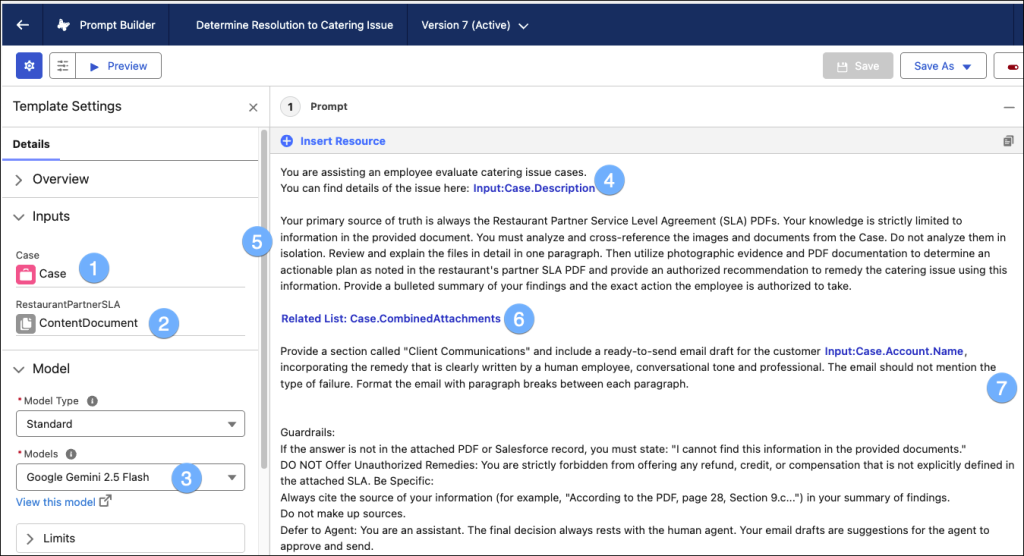
Here’s a deep give of the prompt template used to determine the resolution to the catering issue and draft an email to the client regarding this resolution.
By passing in the (1) case record, we can then use information in our prompt such as (4) case description, (6) case attachments, and (7) client name.
By passing in the (2) content document ID, we can use our grounding data to determine the best resolution for the catering issue.
To get the best results from an AI model that can see and read images, files, audio, and video, use (3) Google Gemini Flash 2.0 or 2.5 models.
You can instruct the LLM to (7) draft client communications as though it was written by a human agent.
Let an AI employee agent do the heavy lifting for your agents
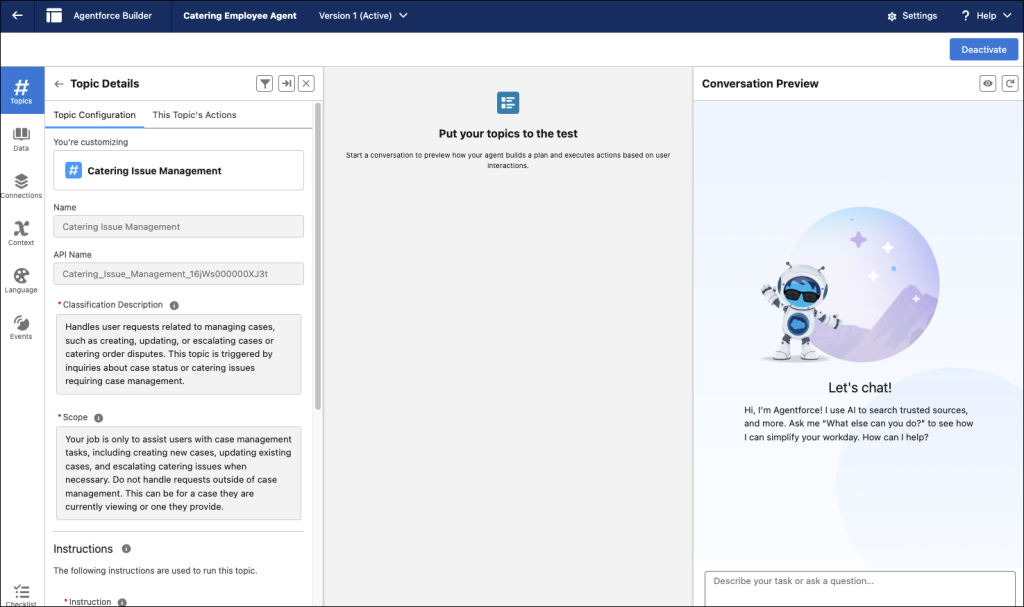
To tie this all together, we need an employee agent powered by Agentforce to cut the analysis and resolution time from 20-30 minutes per catering issue down to 30 seconds. I called mine the Catering Employee Agent. It only has one topic: Catering Issue Management.
The instructions for the Catering Issue Management topic are pretty straightforward.
1. If you do not have the case Id, ask for the case number.
2. Use the case number to get the case Id and the restaurant name from the case.
3. Formulate the title of the content document by taking the restaurant name and putting it into this format: [Restaurant Name]+”Partner_SLA” Add “” in between each word of the restaurant name. For example, if the restaurant’s name is “She Rocks”, then the title of the content document is “She_Rocks_Partner_SLA”.
4. When a user needs help analyzing supporting documentation for an order dispute, before you can take action, you must have the case ID and the content document ID for the Restaurant Partner SLA PDF.
5. If you do not have the content document ID, use the ‘Retrieve ID for Restaurant Partner SLA PDF’ action to get it.
6. Once you have the case ID and content document ID, then determine resolution to catering issue (that is, the case).
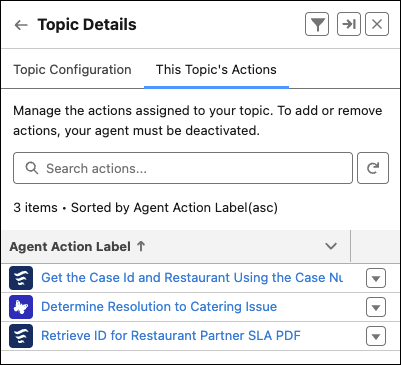
When running this topic, this agent has access to the three actions we walked through earlier: two flow actions and a prompt action.
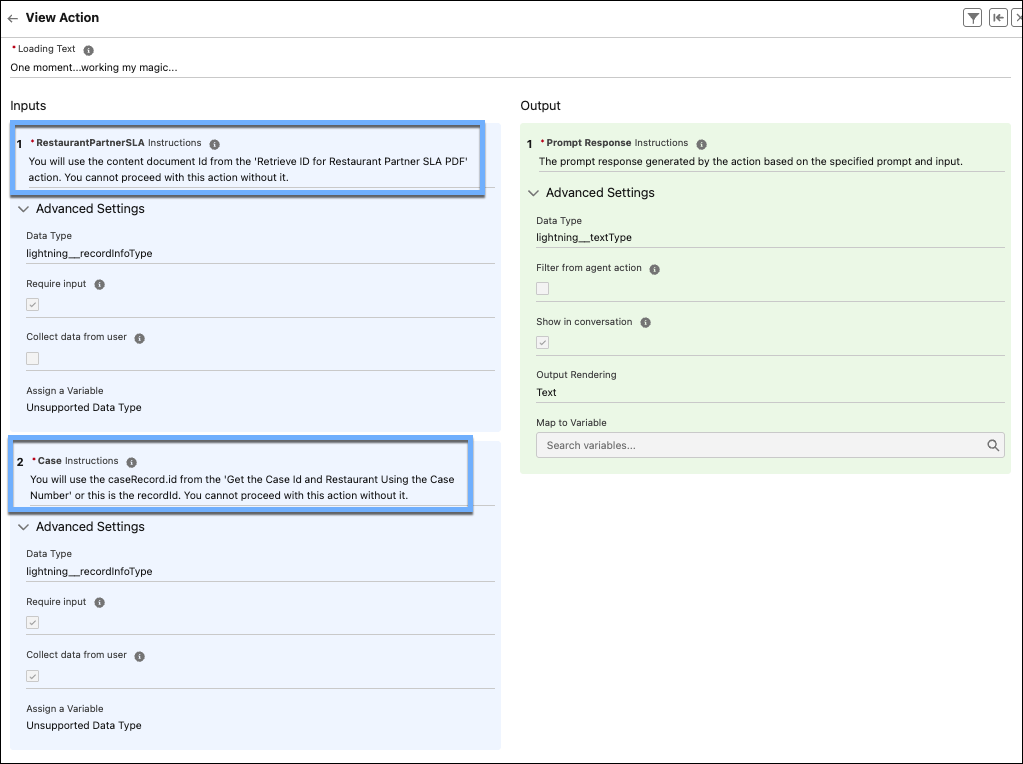
When configuring your agent actions, it’s important to be very descriptive in your description fields. Your agent uses this metadata because they provide the necessary context and clarity for the Atlas Reasoning Engine to execute tasks accurately and efficiently. It tells the LLM the intent, the required input data, and response. This screenshot shows the inputs and outputs of the prompt agent action.
From one solution to endless possibilities
And that is the ‘How I Solved It’ magic.
‘Pronto’ and the ‘sad shrimp’ might be fictional, but the pattern is real. It’s everywhere. This solution isn’t just for catering. This is your inspiration for any time your users have to compare visual evidence against a complex document,or when you need to analyze text and images fast.
Think about it:
For Field Service: What if your field tech could take a photo of a broken part, and the AI could instantly scan the 200-page technical manual and the warranty PDF—and understand the next course of action to take?
For Insurance: What if a customer uploads a photo of a dented bumper and AI compares it to the company’s 80-page policy document—and instantly confirms their coverage level and deductible?
For Retail & B2B: What if a customer provides a photo of a misprinted T-shirt, and the agent instantly compares it against the original purchase order’s spec sheet to authorize a reprint?
The pattern is the same: [Visual Evidence] + [Text-Based Rules] = An Instant, Authorized Answer.
As Awesome Admins, we’re the ones who can build this. We’re the bridge. We know where the data lives. By using Flow to get the right data and Agentforce to understand that data (all of it!), we’ve created AI we can trust.
We didn’t just solve a case—we solved a class of problems.
What ‘impossible’ visual + text problem are you thinking about solving?
Get started with Agentforce Vibes Agentforce Vibes might seem like a strange starting point for the average Salesforce Admin, but it can be a very powerful tool. And it’s becoming more and more powerful as time goes on. To understand its potential for admins, it helps to start with the basics. When you open Vibes […]
Let’s be real for a minute. Things are moving incredibly fast right now. Every time you log in or refresh your feed, there’s a new AI tool popping up, promising to change how we work. If you’re feeling the fatigue of constantly trying to keep up, or if you’re quietly worrying about where your traditional […]
At TDX 2026, the Agentforce Hackathon brought together builders from across the Salesforce ecosystem to create AI-powered solutions that tackle real-world challenges. And the ideas were anything but theoretical. This year’s finalists explored how Agentforce can: Help care coordinators better support patients. Give city teams earlier visibility into infrastructure issues. Make knowledge experiences more dynamic […]