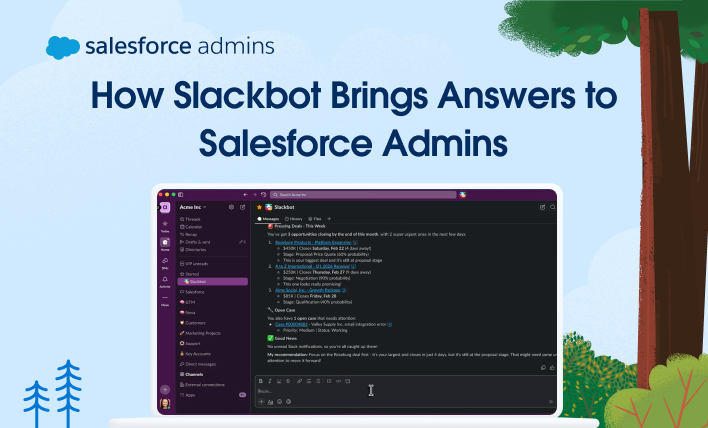
Admins have more tools and tasks than ever. But what if some of the answers could come to you instead of you hunting for them? Slackbot brings that possibility to life.
Think of Slackbot as your personal digital aide, ready to help you do your job as a Salesforce Admin. It’s built right into Slack to help users find info and automate the small stuff (like scheduling and content drafts) without jumping between tabs.
Using it is as simple as starting a conversation with Slackbot itself. It respects all of your existing access controls, so security is a non-issue. You don’t need to install anything — just decide who has access to use it.
Here’s a quick look at what Slackbot can and can’t do to help you interact with Salesforce without shifting context. Slackbot can:
Search and query records
Read and display record details
Aggregate and analyze data
Provide cross-object insights
Slackbot cannot:
Perform record updates
Access dashboards or reports
Update Chatter
Note that Slackbot is a fast-moving feature, so that might change.
Even this is just a snapshot. As a conversational AI, Slackbot can handle more complex requests when asked in natural language. For an example, see Slack’s own Mike Reynolds in action.
Tips for administering Slack
I also wanted to include tips for admins who are now wearing a second hat as Slack admins. What’s important to know on day one? How is it different from Salesforce administration?
To answer that, I asked an expert on Slackbot … Slackbot itself! Now I’m still a big believer in the Human in the Loop, so what follows are my own words, but they all come from a conversation I had with Slackbot. Here are five recommendations we both agreed on.
1. Plan your channel structure before you build
Everyone knows that channels can start to stack up the more you use Slack. A common sense naming convention along with a strategy for what kind of channel (public, private, etc.) is best suited for which use cases will help users navigate down the road. When it comes to naming, consider the following.
Start with a prefix system
Prefixes help channels self-organize and make them scannable at a glance. Is this a planning channel? A team channel? A social channel? Those are all prefixes we use at Salesforce to help line them up in the channel folder.
Here are a few more examples from Slackbot itself.
team- → team-specific channels (for example, team-admins, team-sales)
proj- → project work (for example, proj-crm-migration)
help- → support/Q&A channels (for example, help-salesforce, help-it)
announce- → one-way broadcasts (for example, announce-company, announce-releases)
ext- → channels with external guests (for example, ext-company)
Keep names lowercase and use hyphens
Slack channel names are case-insensitive and spaces aren’t allowed, so hyphens are your friend. Short, descriptive, and all lowercase reads cleanly across devices.
Be specific, not clever
#proj-spring25-data-migration is much more useful than #the-big-project and is more understandable in the long run. Channel names should be human friendly and describe the conversation at hand.
Document your conventions in a pinned message or canvas
Whatever you decide, write it down and make it findable. A channel like #slack-guidelines with a pinned canvas is a great home for this.
2. Understand the difference between Slack and email
While Slack can greatly reduce swapping tabs to your email, it’s not intended to replace email entirely. It’s best for real-time conversations and collaborations. However, this can also sometimes create an assumption of real-time responses. Channels, especially support channels, should include descriptions that maintain expectations around response time.
3. Don’t overlook permissions and guest access
Slack has its own permission model: workspace admins, channel managers, guests, etc. Admins should understand how this maps to their org’s security model, especially if external collaborators (like partners or customers) are involved. Here are some similarities.
Salesforce
Slack
System Administrator
Workspace Owner
Standard User
Member
Profile/Permission Set
Channel-level permissions
Communities/Experience Cloud User
Guest User
Org-Wide Defaults
Default Channel Settings
The key difference: Salesforce permissions are very granular and object-based, while Slack permissions are more role and channel-based.
There’s no field-level security equivalent in Slack; access is controlled at the channel level.
4. Remember: Slack + Salesforce integration is powerful but needs governance
Salesforce for Slack integrations (like record alerts, approvals in Slack, and Flow-triggered notifications) are incredibly useful, but they need guardrails. Think about who can create automations, what data surfaces in Slack, and how to avoid notification overload.
In theory, this is similar to the principle of least privilege: Don’t give users or channels access they don’t need. As a Salesforce Admin, you already know how to keep users from being able to do harm, how to create integration users with only the level of data access they need, and how to keep users from getting the information they need but spamming them with it. That’s a similar discipline at play here.
5. Stay organized: Governance doesn’t stop at launch
Slack orgs can get messy fast: abandoned channels, redundant workspaces, shadow IT integrations. A good admin will establish a regular review cadence for channels, apps, and connected integrations to keep things tidy and secure.
Weekly
Check the App Management queue for any pending app install requests.
Review flagged messages or content policy alerts.
Scan for new channels created outside naming conventions.
Monthly
Audit newly installed apps, and confirm they have a clear owner and business purpose.
Review channels with zero activity in the past 30 days and send a “still active?” prompt to owners.
Check for guest accounts that are no longer needed.
Review retention policy exceptions or overrides.
Quarterly
Full channel audit: Archive channels with 90+ days of inactivity after notifying owners.
Review all connected integrations and third-party apps.
Assess workspace membership, verify role assignments, and remove departed employees.
Review and update your channel naming convention and governance documentation.
Check shared channels for any external orgs that should no longer have access.
Annually
Full permissions audit: Who has admin, owner, or elevated roles?
Review and refresh your Slack governance policy document.
Evaluate workspace structure: Do you still need all the workspaces/orgs you have?
Survey users on pain points (too many channels? noise? missing workflows?).
Align retention and compliance settings with your legal and security teams.
When in doubt, turn to Slackbot
Slackbot can be your guide, whether it’s assisting with day-to-day activities specific to your job or helping you plan out your new role as a Slack admin. As admins take on more cross-functional responsibilities, the ability to access data, automate work, and guide users without switching tools becomes critical. Slackbot helps admins move faster, reduce friction for users, and scale their impact across the business.
Have more questions about best practices when it comes to using channel tools like a canvas? Slackbot can not only help with advice but also help create a canvas for you.
I have to say, in all my years writing technical content, this is probably the first time I interviewed the actual tool itself in order to write a handy introduction to it. Give talking to Slackbot a try and let us know how your conversation goes.
Calling all Awesome Admins! Dreamforce 2025 is your moment to build boldly and help shape the future of the Salesforce platform. Join us October 14-16, 2025, in San Francisco—or tune in on Salesforce+—to unlock unprecedented success with the power of trusted AI, real-time data, and CRM. Dreamforce is where admins become strategic leaders, expand their […]
Wow! Not only has TDX given us the chance to connect, learn, build, and become Agentblazers together, but there have also been some game-changing announcements in the keynote for admins working with artificial intelligence (AI) in Salesforce. This year’s keynote follows the story of an Agentforce customer redefining their customer experience with intelligent products and […]
Get started with Agentforce Vibes Agentforce Vibes might seem like a strange starting point for the average Salesforce Admin, but it can be a very powerful tool. And it’s becoming more and more powerful as time goes on. To understand its potential for admins, it helps to start with the basics. When you open Vibes […]